
Who can use this?
✓ Students and Teachers.
✓ This is a free feature; users on any Kami plan can use this tool.
What is the Markup tool?
The Markup tool lets you easily highlight, underline, and strike through text in your documents while working or studying to emphasize specific information.
How to use the Markup tool
To use the Markup tool, simply select Markup from your Kami toolbar.
A menu bar will open with an array of options for creating your markups. Choose your desired markup method (Text Highlighter will be selected by default) from the menu, then begin marking up your document! Learn more about each option available in the Markup toolbar below:
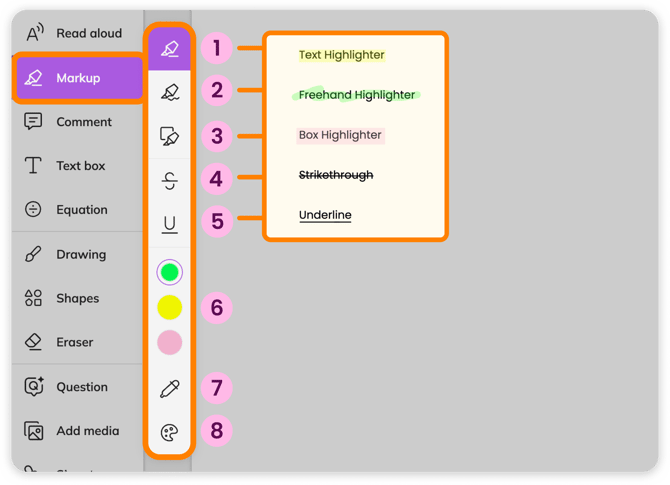
1. Text Highlighter — Automatically highlights any text you select on your page. Requires text to use.
2. Freehand Highlighter — Allows you to highlight non-text items in your document. Behaves similarly to the Drawing tool.
3. Box Highlighter — Drag to create highlighted boxes on your document. Useful for non-text items or areas that can't be highlighted with the Text Highlighter, while still providing that perfectly highlighted look. Behaves similarly to the Shapes tool.
4. Strikethrough — Automatically adds a strikethrough line to any text you select on your page. Requires embedded text to use.
5. Underline — Automatically adds an underline to any text you select on your page. Requires embedded text to use.
6. Quick select color palette — Easy access to your most recently used colors.
7. Eyedropper — Select a color directly from your page to be used for changing the color of your markup annotations.
8. More Colors — Opens the full color palette to be used for changing the color of your markup annotations.
Markup action bar
After adding a markup to your page, the action bar will appear with options specifically for markups attached to text or freehand markups.
Markups attached to text
%20(2)-png-Oct-07-2026-03-52-15-4432-AM.png?width=670&height=233&name=Screenshot%20Template%20(Insert%20image)%20(2)-png-Oct-07-2026-03-52-15-4432-AM.png)
1. Annotator's initials — Identifies the user who made this markup annotation.
2. Color picker — Allows you to change the color of your markup. Choose from a selection of frequently used colors, or use the Color picker or More colors for even more options.
3. Read Aloud tool (🔒) — Click to have the marked-up text read aloud. Requires a paid Kami plan.
4. Convert to Comment — Works with the Comment tool to add a comment on the right side of the page that will be linked to your markup.
5. Copy — Copies the marked-up text to your clipboard.
6. Delete — Removes the markup annotation.
Freehand markups
%20(3)-png-Oct-07-2026-03-53-27-5036-AM.png?width=670&height=239&name=Screenshot%20Template%20(Insert%20image)%20(3)-png-Oct-07-2026-03-53-27-5036-AM.png)
1. Annotator's initials — Identifies the user who made this markup annotation.
2. Move — Allows you to select and drag the markup annotation on the document. It can also be moved using the Select tool.
3. Color — Allows you to change the color of your markup. Choose from a selection of frequently used colors, or use the Color picker or More colors for even more options.
4. Font size — Changes the thickness of your markup stroke. Behaves similarly to the Drawing tool.
5. Opacity — Changes the opacity of your markup. Behaves similarly to the Drawing tool.
6. Line style — Allows you to change your markup stroke to solid or dashed, and the option to add a right or left arrow to the start or end of your markup stroke.
7. Add to annotation bank (🔒) — Saves the markup to your Annotation Bank (exclusive to Teachers). Requires a paid Kami plan.
8. Delete — Removes the markup annotation.