
Who can use this?
✓ Teachers.
✓ Requires a Kami paid plan.
We recommend reviewing any AI-generated content in Kami to ensure it is accurate, appropriate, and matches your unique teaching style.
What is the Questions AI tool?
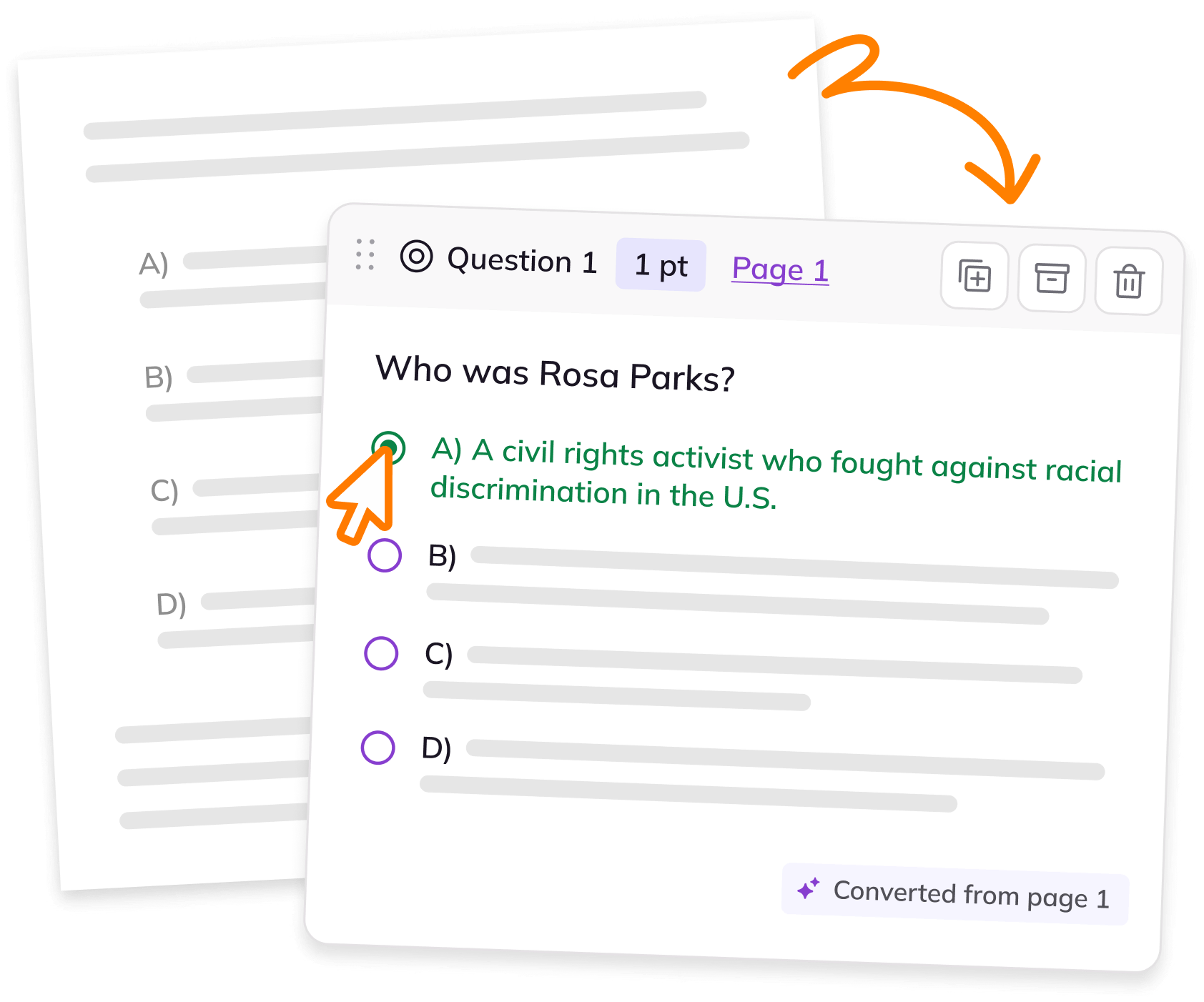
Kami’s Question AI tool allows teachers to create AI-powered, auto-grading assessments for faster checks and better learning. With this tool, you can:
-
Choose from a variety of question types.
-
Set correct answers and point values for them.
-
Test and review the questions before assigning them in your LMS.
💡 To access all the features of the Questions tool, check to make sure that the Kami AI tools are enabled in Settings.
How to use the Questions tool
Select Questions AI from the Kami toolbar. A menu window with three different options will appear on the right side of your screen. Learn more about each option and the steps to use them:

Convert
Elevate your existing learning resource/document into an interactive learning experience with the help of your AI assistant.
-
Convert the current doc/template or open any PDF.
-
Choose which pages to include.
-
Edit questions to suit your students’ needs.
Steps to use
1. To begin, select the Convert option, then choose from the following two options:
Convert the current document — This allows the AI to convert the document’s content into auto-grading questions.
Convert other PDF — If you want to convert another file (with or without content) separate from the one currently open in Kami, use this option. You'll be prompted to upload the file from Google Drive or OneDrive.

2. Next, you'll be prompted to specify which pages of your document you'd like to convert into questions. You can set a page range or a custom selection of specific pages.

3. Once finished, press the Convert questions button at the bottom of the window. Kami AI will then start converting your questions. Once it's finished, your questions will be available to edit to suit your teaching style or students' needs.
Generate
Create AI-powered questions directly from the text, diagrams, pictures, and more on your current Kami document.
-
Set the Depth of Knowledge, based on grade level.
-
Choose the questions’ difficulty.
-
Add a helpful hint for those who need it.
Steps to use
1. To begin, select the Generate option.
2. After selecting, you’ll be prompted to customize your questions with several settings:
Grade level — Assign the grade level of your questions. Select from grades 1 through 12.
Language — Select from the list of available languages for your questions to be generated in.
Select pages — Specify which pages of your document you'd like to use to generate your questions. You can set a page range or a custom selection of specific pages.
Question type — Choose from Multiple choice or Short answer.
Number of questions — Set the number of questions you'd like to generate (maximum of 10 questions).

3. (Optional) Select Advanced Settings to view and customize additional settings:
Number of options — For multiple choice question types, set the number of answer options to be created for each question. Select from 2 to 6 options.
Difficulty level — Choose from At grade level (default), Below grade level or Above grade level.
Depth of Knowledge level — Choose from Level 1 through 4:
-
Level 1: Recall and Reproduction Tasks at this level require basic recall of facts, definitions, or simple procedures. The focus is on rote memorization and straightforward application.
-
Level 2: Skills and Concepts Tasks at this level involve more than one cognitive step. They require students to apply skills and concepts, often involving decision-making or reasoning.
-
Level 3: Strategic Thinking Tasks at this level require reasoning, planning, and the use of evidence. They often involve abstract thinking and greater complexity in the decision-making process.
-
Level 4: Extended Thinking Tasks at this level involve complex reasoning, planning, developing, and thinking over an extended period. They often require synthesizing information from multiple sources and making connections across disciplines.
4. Once finished, press the Generate questions button at the bottom of the window. Kami AI will then start generating your questions. Once it's finished, your questions will be available to edit to suit your teaching style or students' needs.
Create from scratch
This option does not utilize Kami AI to develop questions. Simply type your question and answer key manually, then customize the settings.
With this option, your questions can be multiple choice, checkboxes, short answer, dropdown, or open-ended.
You'll also have toggle options to display your question on the page, show the answer option/field only, randomize order, allow partial matches (for short answer questions only), or add a hint (for short answer questions only).

Editing your questions
All questions and answers are editable, even if they've been created using Kami AI.
The settings for each question can be found at the bottom of the Questions side panel. The options shown will be the same as if you were to create your questions from scratch (described above).
Customizing how your questions are displayed to students
Questions AI allows you to choose between having the full question on the page or a marker with the question shown on the right side page in the Questions panel (similar to a Comment tool anchor point).
To change this, select the question on your page, then select the Question Display option from the action bar.
Below are examples of each option:
Full
%20(4)-png.png?width=670&height=436&name=Screenshot%20Template%20(Insert%20image)%20(4)-png.png)
Marker
-png-3.png?width=670&height=376&name=Screenshot%20Template%20(Insert%20image)-png-3.png)
To see how your questions are displayed on the students view, select the binoculars icon to view the Student preview.
%20(3)-png.png?width=670&height=429&name=Screenshot%20Template%20(Insert%20image)%20(3)-png.png)
📝 Before assigning, remember to delete any unwanted questions from the Questions panel, as everything included there will be shown to students (including the questions that haven't been placed inside the document).
Navigation tips & other helpful settings
Selecting the ellipses (...) button opens the More actions menu, which allows you to view your questions more conveniently. It also gives you the option to delete them all and start over.
The plus (+) button lets you quickly add a new create from scratch question.
Another navigation menu appears at the bottom of all generated questions. This is just the main menu, so you have an easy way to restart the process, if needed.
%20(1)-png-2.png?width=670&height=383&name=Screenshot%20Template%20(Insert%20image)%20(1)-png-2.png)