
Who can use this?
👤 Students and Teachers.
👤 This is a free feature; users on any Kami plan can use this tool.
🔒 Certain Comment tool features (Generate Feedback, Voice, Video, and Screen Capture Comments) require a Kami paid plan.
What is the Comment tool?
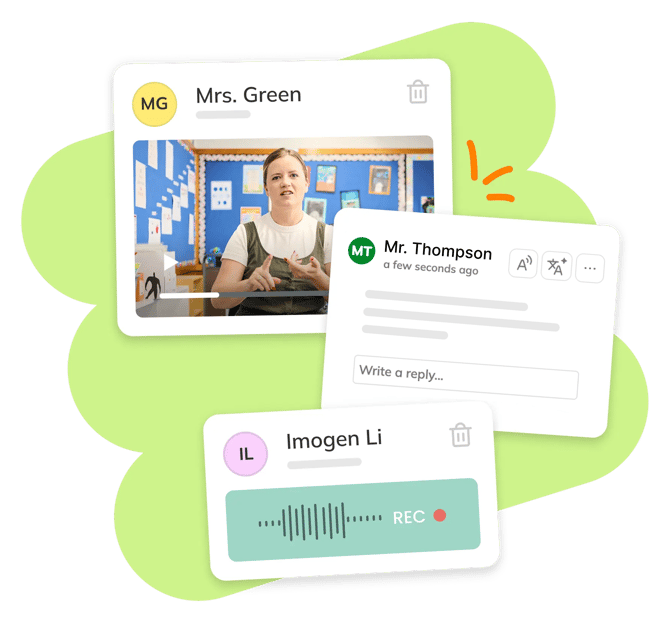
The Comment tool is one of Kami's most versatile features, allowing you to give feedback that’s clear, personal, and engaging directly within your document.
With text, voice, video, and screen capture comments, you can connect with students in ways that suit their learning styles.
How to use the Comment tool
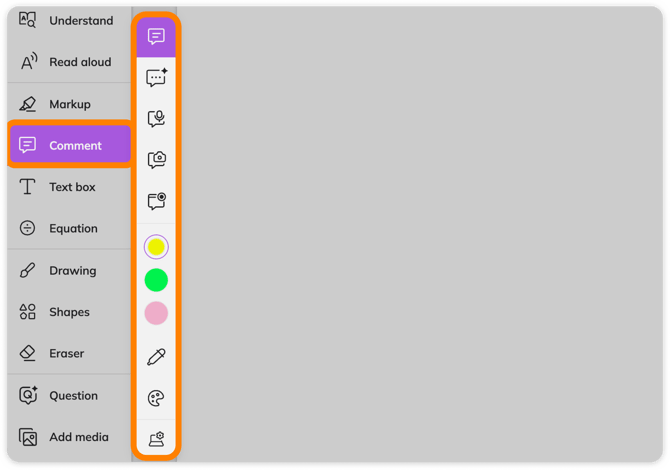
1. Select the Comment tool from your Kami toolbar. A menu bar will open with options for creating the comment (learn more about each of these in the section below). Text comment will be selected by default.
2. Click anywhere on your page to create an anchor point. This is a movable dot on the page linked to your comment in the right-side panel.
After you add your comment in the side panel, it will remain there for other users to view and comment on.
-png.png?width=670&height=344&name=Comment%20(1)-png.png)
📝 Text comments are automatically saved after text has been entered in the comment box. If no text is added, the anchor point will automatically disappear.
Learn about each option available on the menu shown after selecting the Comment tool:
-png.png?width=670&height=470&name=Comment%20(2)-png.png)
1. Text Comment — Add text by typing with your keyboard, Predictive Text, or Voice typing. Refer to the section below to learn more about using Text comments.
2. Generate feedback (🔒) — For teachers to create AI-Assisted feedback displayed as comments to students. Available only to users with AI + beta features enabled. Requires a paid Kami plan.
3. Voice comment (🔒) — Record audio using your device's microphone to leave as a listenable comment. Automatically starts recording once the anchor point has been added. Alternatively, you can upload an existing audio file to automatically create a Voice comment. Requires a paid Kami plan.
4. Video comment (🔒) — Record video using your device's camera to leave as a visual comment. Automatically starts recording once the anchor point has been added. Requires a paid Kami plan. Refer to the section below to learn more about using Video comments.
5. Screen capture comment (🔒) — Record your screen (with or without audio) for a demonstration. After an anchor point is added, you'll be prompted to select what screen/tab/window you want to record, then the recording will start automatically. Requires a paid Kami plan. Refer to the section below to learn more about using Screen capture comments.
6. Quick select color palette — Easy access to your most recently used colors, used to change the color of the anchor point.
7. Eyedropper — Select a color directly from your page to be used to change the color of the anchor point.
8. More colors — Opens the full color palette to be used to change the color of the anchor point.
9. Settings — Opens your browser settings to see the selected microphone/camera and their permissions.
Text comment-specific options
Several options are available within the comment box when creating or viewing a Text comment. Note: Certain options require a paid Kami plan.
-png.png?width=670&height=398&name=Comment%20(3)-png.png)
1. Read response aloud (🔒) — Have the comment's text read aloud. Requires a paid Kami plan.
2. Translate comment (🔒) — Select the desired language from the drop-down list of options to view a translation of the Text comment. Requires a paid Kami plan.
3. Additional options (⋯) — Displays options to Delete comment or Add to Annotation Bank (exclusive to Teachers).
4. Predictive Text (🔒) — Available when creating or editing the comment, this displays predictive options as you type. Requires a paid Kami plan.
5. Voice typing (🔒) — Available when creating or editing the comment, this lets you speak aloud and have your voice automatically transcribed into the comment. Requires a paid Kami plan.
📝 To revise your comment after it has been added, just tap on the text again to make it editable. After editing, tap anywhere on the screen to save.
Video and Screen capture comment-specific options
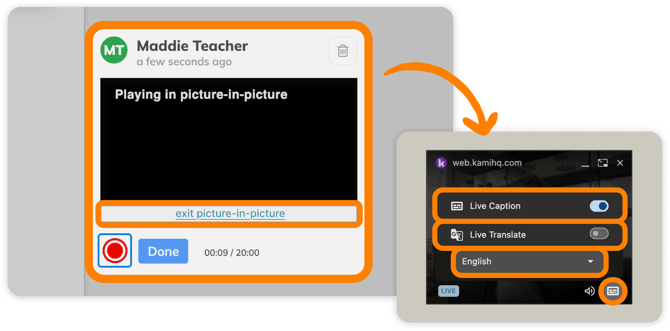
When creating a Video or Screen capture comment, the recording window will appear on the right-side panel. Auto-generating captions will be added to your recording after saving. Note: These options require a paid Kami plan.
In picture-in-picture mode, a smaller recording window appears in the bottom-right corner of your screen. From there, you can select the closed caption button (bottom-right corner).
This displays options to disable live captions (enabled by default), enable live translation, and set the caption/translation language.
To exit picture-in-picture mode, select the exit button toward the bottom of the main recording window.
Highlighting text to add a comment
As an alternative to adding an anchor point, you can also highlight text with the Markup tool to add a comment.
1. Select the Markup tool from the Kami toolbar.
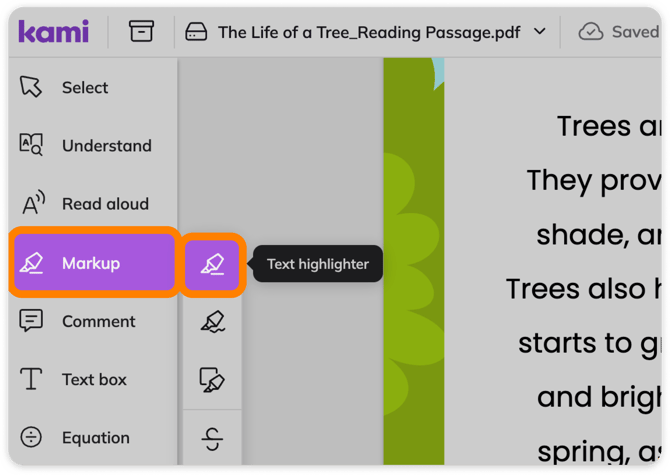
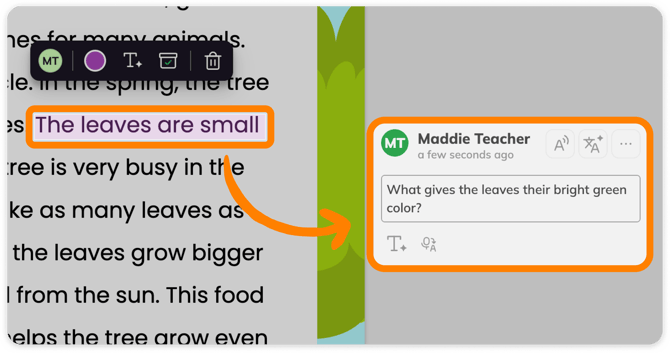
2. Using the Text highlighter option (selected by default), highlight the desired text on your page, then select Convert to comment from the annotiation's action bar.
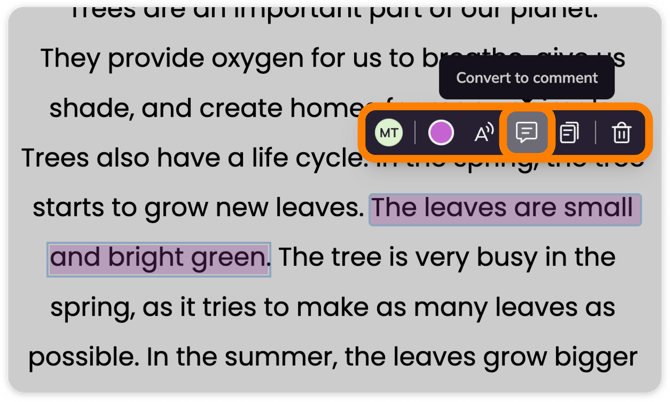
3. After you add your comment in the side panel, it will remain there for other users to view/comment on and will be linked to the highlighted text on the page, just like an anchor point.
Uploading audio files to create Voice Comments
In addition to recording an audio clip directly in your Voice Comment, you can also upload an existing audio file from your device or cloud storage (Google Drive and OneDrive) to add as a Voice Comment.
To upload one, navigate to the Add Media tool from the Kami toolbar, then select My Computer, Google Drive, or OneDrive.
After selecting your file, click anywhere on the page to automatically create an audio comment with an anchor point.
%20(1)-png-May-03-2026-11-24-49-3670-PM.png?width=670&height=427&name=Screenshot%20Template%20(Insert%20image)%20(1)-png-May-03-2026-11-24-49-3670-PM.png)