
Who can use this?
✓ Students and Teachers.
One of several Understand tools available in Kami designed to improve comprehension, accessibility, and independence for all learners.
What is the Translate tool?
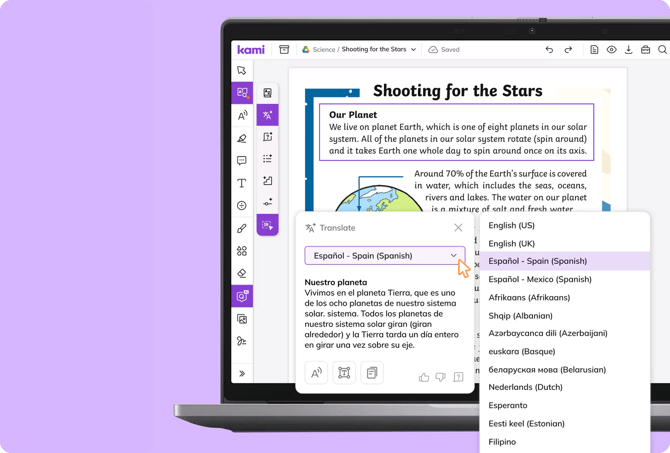
The Translate tool helps remove language barriers by allowing you to instantly translate selected text in your document into another language.
Designed to support multilingual learners, English Language Learners, and inclusive classrooms, the Translate tool makes content more accessible without disrupting your workflow.
How to use the Translate tool
1. On the Kami toolbar, open the Understand tools menu and select Translate.

2. Highlight the text in your document that you'd like to translate.
You also have the option to select an area of text instead by toggling on Area Selection (located at the bottom of the Understand tools menu).

📝 If you are unable to select text in your document with the Area Selection toggle turned off, you may need to run the Text Recognition tool. This will embed the text in your document, allowing it to be selected.
Changing the Translate tool language
To change the language of your translation, simply select the current language assignment and choose the desired language from the list of drop-down options.

Other Translate tool options
Several additional features are available in the Translate tool window.

1. Read Aloud — Use this to have your translation read aloud. Learn more about the Read Aloud tool.
2. Create comment from response — Select this option to turn your translated text into a comment. Learn more about the Comment tool.
3. Copy response to clipboard — Use this button to copy the translated text to your device's clipboard.