Who can use this?
✓ Students and Teachers.
✓ Requires a Kami paid plan.
Read aloud supports a variety of languages and voices. Text can be easily read aloud in another language, without requiring prior translation. Learn more about changing/adding more voices.
What is Read aloud?
The Read aloud tool helps students and teachers by converting on-screen text into natural spoken audio. Hear digital text read aloud to support comprehension, accessibility, and independent learning.
This tool is designed to help all learners, including those who benefit from auditory reinforcement, language support, or alternative ways of accessing content.
Kami offers a wide range of voice options, including Natural Voices in various languages, allowing users to personalize their listening experience.
Read aloud options
The Read aloud tool is located on the Kami toolbar. Once clicked, a menu will open with several different options:
%20(1)-png-Oct-07-2026-02-07-16-9371-AM.png?width=670&height=492&name=Screenshot%20Template%20(Insert%20image)%20(1)-png-Oct-07-2026-02-07-16-9371-AM.png)
1. Previous Sentence — Re-reads aloud the previous sentence.
2. Next Sentence — Skips to the next sentence to read aloud.
3. Loop — Reads the selected text on repeat.
4. Read Page / Resume — If no text is selected, the whole page will be read aloud. Otherwise, can be used as the resume button if reading has been paused or stopped.
5. Pause — Pauses reading aloud until the resume button is pressed.
6. Stop — Unselects the selected text and stops reading aloud.
7. Change Voice (Default Voice) — Allows you to change the speaking voice used. Shows the currently selected voice and any you've marked as preferred.
8. Speed — Changes the reading speed on a slidable scale from 0.1x to 2x.
9. Toggle Area Selection — Allows you to select an area of your document to have its contents read aloud. This works as an alternative to selecting embedded text, and can be toggled on or off.
How to use Read aloud
After selecting the Read aloud tool from the Kami toolbar, simply highlight a section of embedded text on your document to have it automatically read aloud.
This will begin reading from the first word until the end of the selected text, until you click Pause or Stop.
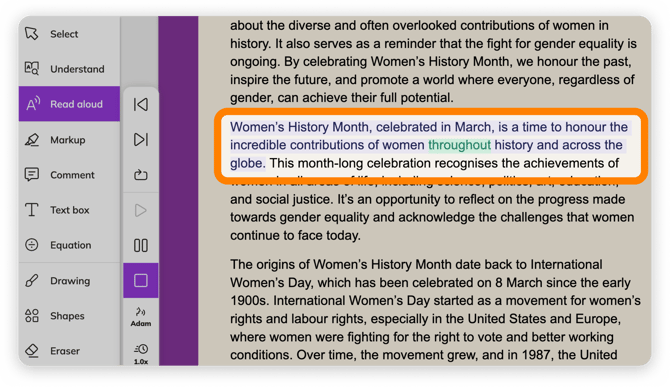 You can also click the Read Page option to have the entire page read aloud instead.
📝 If you are unable to select text in your document with the Area Selection toggle turned off, you may need to run the Text Recognition tool. This will embed the text in your document, allowing it to be selected.
Using Area Select with Read Aloud
The Area Select option, which can be toggled on from the Read aloud menu, lets you select an area of your document to have its contents read aloud. This works as an alternative to the default of selecting embedded text, as described above.
If the selected area contains text, the text will be read aloud.
If the selected area contains an image, a description of the image will be read aloud.
%20(2)-png-Oct-07-2026-02-18-06-8831-AM.png?width=670&height=425&name=Screenshot%20Template%20(Insert%20image)%20(2)-png-Oct-07-2026-02-18-06-8831-AM.png)
Read aloud voice settings
You can access Read aloud voice settings by selecting Change Voice (Default Voice) > Settings.
%20(3)-png-Oct-07-2026-02-26-23-7064-AM.png?width=670&height=521&name=Screenshot%20Template%20(Insert%20image)%20(3)-png-Oct-07-2026-02-26-23-7064-AM.png)
This window includes several customizable settings:
-
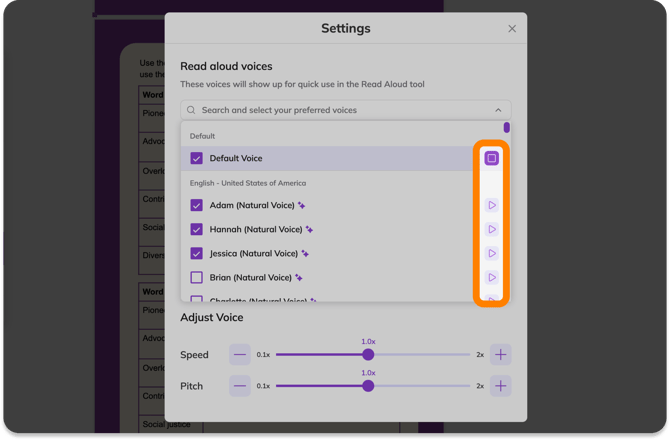
Review voice options in the drop-down list. Preview voices by selecting the play button on the right side of each voice option.
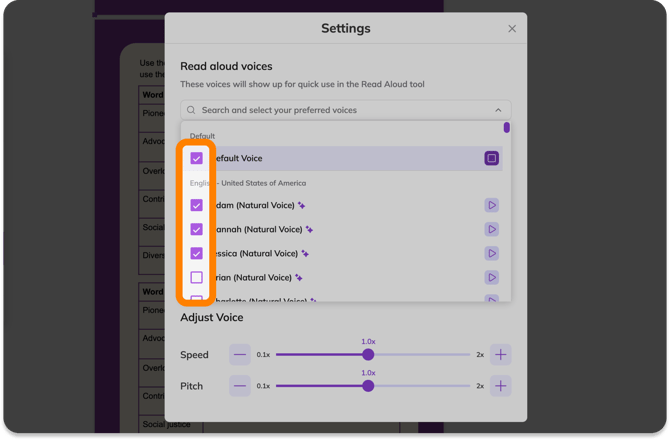
- Select the check box on the left side of each voice to add it to your preferred voices list, shown in the Quick Select section.
💡 The Read aloud tool supports many different languages. Search or scroll through the list to find voices in your desired language, then use the Read aloud tool to have your document's text read aloud in that language.
-
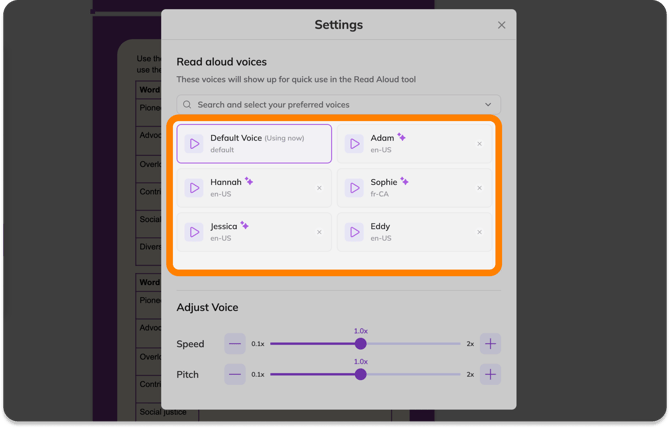
The Quick Select section displays all of your preferred voices. Just click one of the options shown here to make it the current selection. You can also preview the voice by clicking the play button.
-
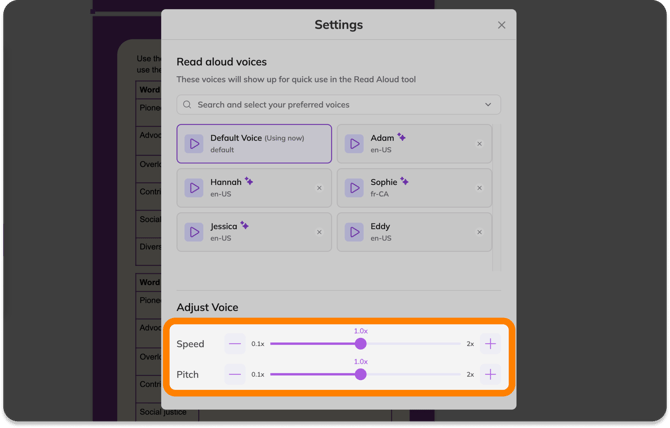
Adjust the Speed and Pitch of the selected voice. Note: This option is not available for all voices.
Using Read aloud on a Text box annotation
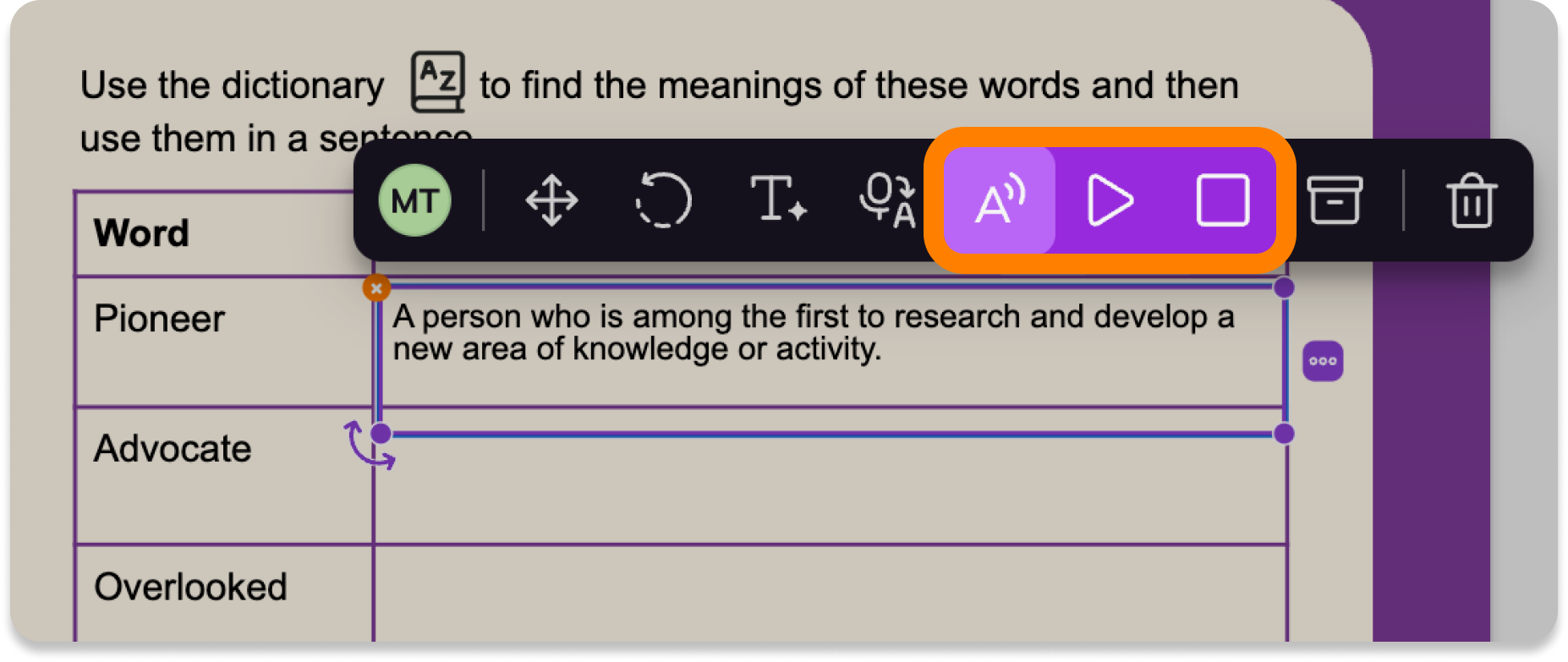
The Read aloud option can also be found in the action bar when creating or editing a Text box annotation.