Who is this for?
✓ Recommended for all Kami users with the Chrome browser.
✓ Google Admin users can install.
✓ This is a free extension; users on any Kami plan can use this.
This guide is recommended for Admins managing their schools/districts from the Google Admin Workspace. Using Kami on your own? Install the Kami Chrome Web Store extension instead; no admin needed.
What is the Kami Private Chrome extension?
The Kami Private Chrome Extension is Kami’s recommended way to deploy Kami App, Kami Companion, and Book Creator to a school or district. It’s totally free, provides a seamless experience, and is the quickest way to access our 40+ tools and features.
Plus, it’s delivered directly through your Google Admin Console, avoiding Chrome Web Store processing delays, so updates reach your classrooms faster.
The benefits:
- Access on demand — The Kami extension is compatible with Chromebooks and is available for both teachers and students.
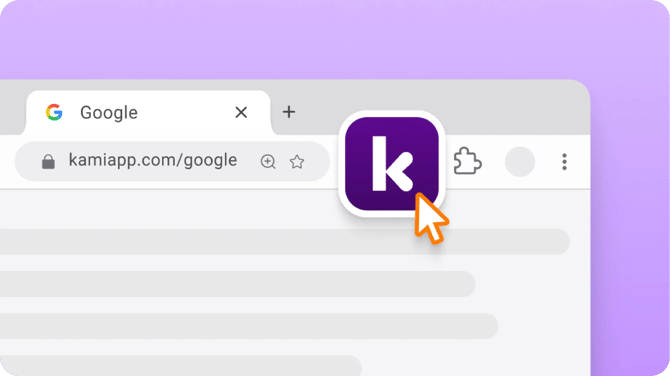
- Open Kami from anywhere— A Kami icon appears on Google Docs, Slides, Sheets, and any webpage, so Kami App, Kami Companion, and Book Creator are one click away.
- Integrations made easy — The extension helps you get the most out of our LMS integrations. Plus, get access to advanced Google Classroom features like Class View and Edit Assignment.
- Updates reach you faster — The latest secure and tested Kami versions reach every classroom faster, avoiding Chrome Web Store processing delays.
- Deployment is centrally managed — Administrators can roll the extension out to the entire organization through the Google Admin Console. Updates happen automatically in the background. Teachers don't need to do anything.
- The experience is identical — Teachers and students won't notice any difference in how Kami works between the Private Extension and the Chrome Web Store extension, as they are functionally identical. The only change is how updates are delivered.
Ready to install?
Installing and deploying to your organization is easy and takes only about 10 minutes via Google Admin Workspace.
Check out our installation guide for step-by-step instructions.
Frequently Asked Questions
What if I have both extensions installed?
If the Kami Chrome Web Store extension has been installed and deployed to the same domain/organization as the Kami Private extension, the installation policy may need to be changed to avoid conflict between the two.
Refer to the steps below for assistance with this:
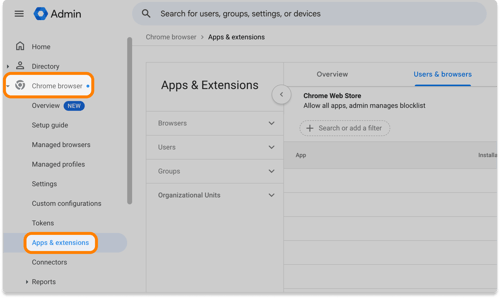
- Navigate to the Google Workspace Admin Console. In the left-side menu, open the Chrome browser tab, then select Apps & extensions.
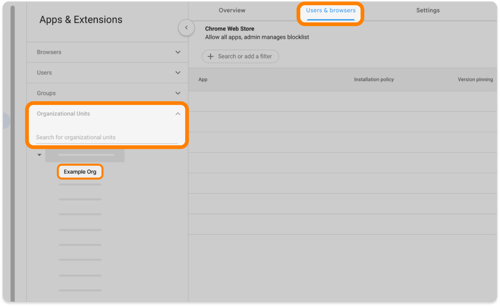
- In the Users & browsers tab, expand the Organizational Units drop-down on the left side panel and select the desired domain or individual organizational unit the extension has been deployed to.
- In the list of your installed Apps & Extensions, find and select the Kami for Google Chrome extension to open the settings panel.
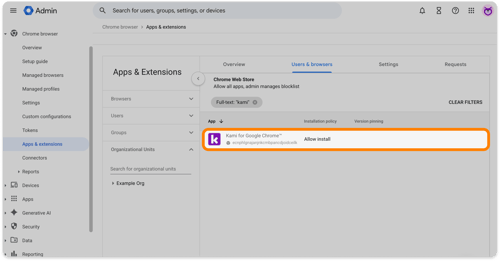
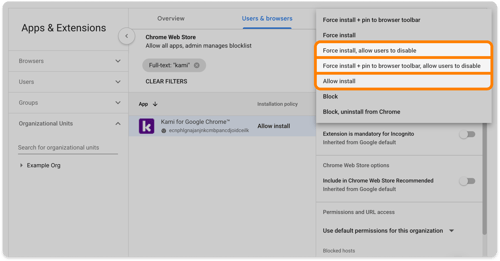
- In the settings panel, locate the Installation policy setting. This must be set to a policy that allows it to be disabled. To change this, select the setting, then choose one of the following options:
- Force install, allow users to disable
- Force install + pin to browser toolbar, allow users to disable
- Allow install
- When finished, select Save in the upper right corner of the window.
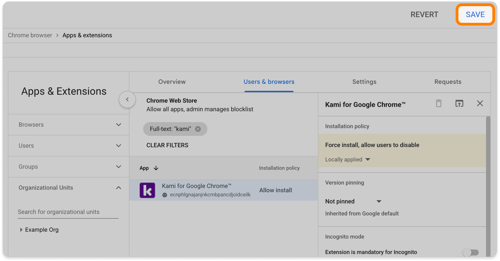
After applying this change, the Kami Chrome Web Store extension will automatically be turned off when the Kami Private extension is enabled.
How do I check the current version of the Kami Private Extension?
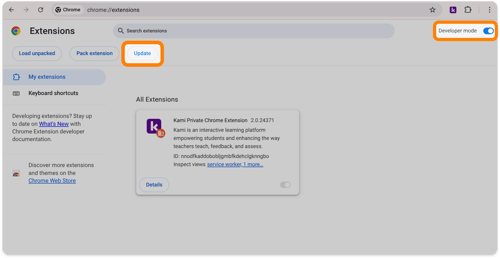
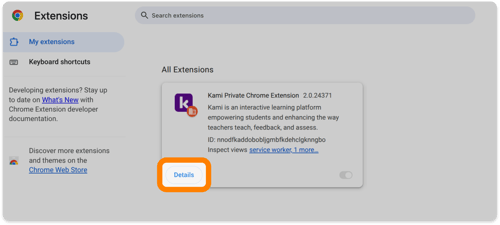
Once installed, the Kami Private Chrome Extension will appear on your Chrome extension dashboard.
This page can also be reached by selecting the extension (🧩) icon to open the Extensions menu, then selecting Manage Extensions.
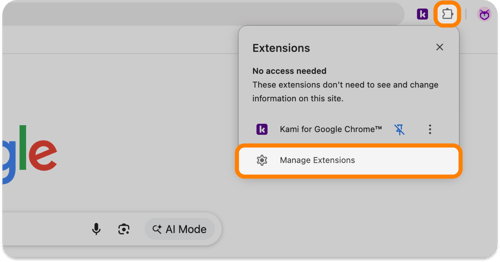
Once on the dashboard, find and select the Details button on the Kami Private Chrome Extension.
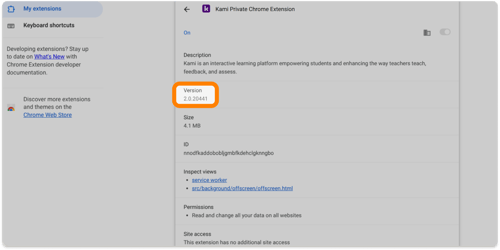
On the extension details page, the current version information will be listed beneath the description.
Do I need to update the Kami Private Extension to get the latest release?
The Kami Private Chrome extension is regularly updated through Google Chrome's automated update system. Therefore, users do not need to manually update the extension to access new releases.
However, users with access to Developer mode in the Chrome extension dashboard can force an update of the extension by selecting the Update button at the top left of the page.