
Who is this for?
✓ Teachers using Moodle.
✓ Requires a Kami paid plan.
To complete the steps in this article, the Kami external tool integration must be installed in Moodle. For further assistance, refer to our guide for installing the Kami external tool integration in Moodle.
How to grade Kami assignments in Moodle
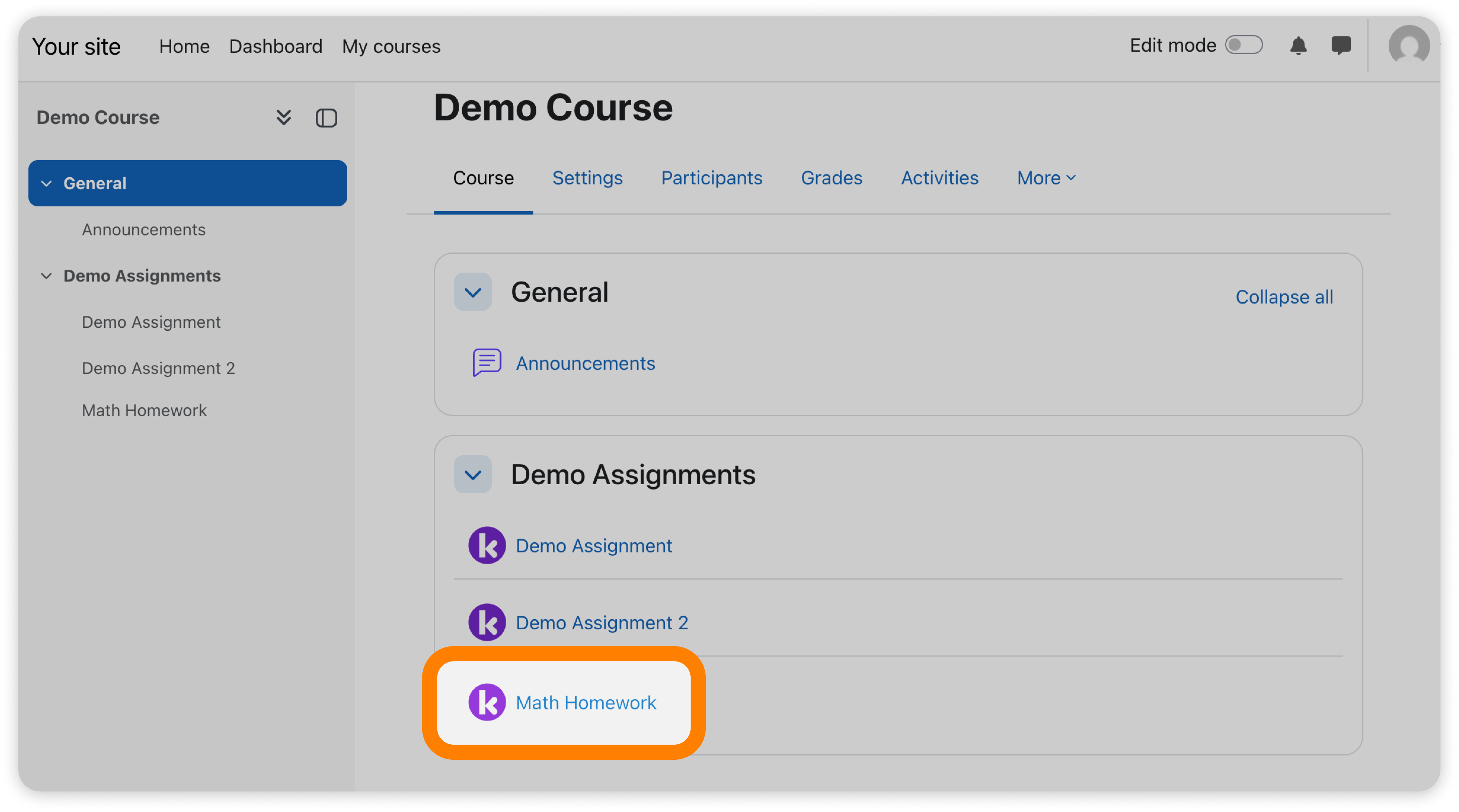
1. After creating a Kami assignment in Moodle, select it from the assignment list of your course.
2. In the Kami pop-up that appears, you'll have the option to open Class View or Edit Assignment. To grade the assignment in Class View, select the Class View button.
-png.png?width=4190&height=2423&name=MoodleGrading%20(1)-png.png)
3. Once you're finished reviewing, enter a student's grade and click the Return button to share it back to them.
⚠️ You will only have the option to add a student's grade in Class View if the Allow Kami to add grades in the gradebook option is enabled in the assignment's settings.
-png.png?width=3623&height=2702&name=MoodleGrading%20(4)-png.png)
💡 Kami assignments can also be graded through the Moodle grade book. If the Allow Kami to add grades in the gradebook option is enabled in the assignment's settings, grades between Kami and Moodle will sync automatically.