
Who can use this?
✓ Students and Teachers.
✓ These are free features; users on any Kami plan can do this.
This guide walks you through the different methods for removing annotations in your document. If you need assistance recovering previously removed annotations, refer to the Restore annotations guide.
How can I delete annotations in Kami?
In addition to the Eraser tool, you can delete annotations in Kami in several ways, including individually or at the same time. Learn more about each method in the sections below.
Note that teachers can delete any student or collaborator annotations if they are the file owner. Students can only delete the annotations they've made on shared files.
If you've made a mistake and need assistance bringing back a previously deleted annotation, check out the Restore annotations feature.
Deleting an individual annotation
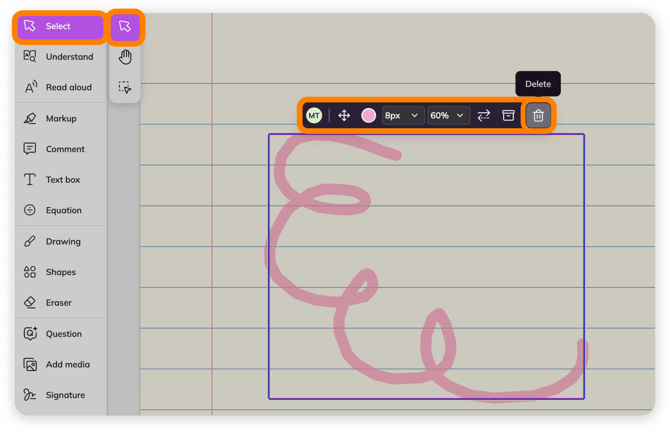
2. Hover over or click the annotation to open its action bar.
💡 For Text box annotations, you can also click the orange X button in the upper-left corner of the text annotation box to delete it.
Deleting a group of annotations
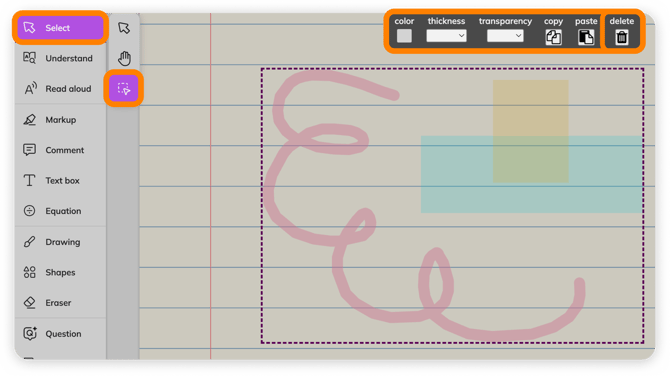
1. Click the Select tool in your toolbar, then choose Select Annotations mode.
2. Click and drag to select the group of annotations.
3. On the action bar that will appear at the top of the screen (beneath the navigation bar), click the delete button to remove them.
Deleting all annotations
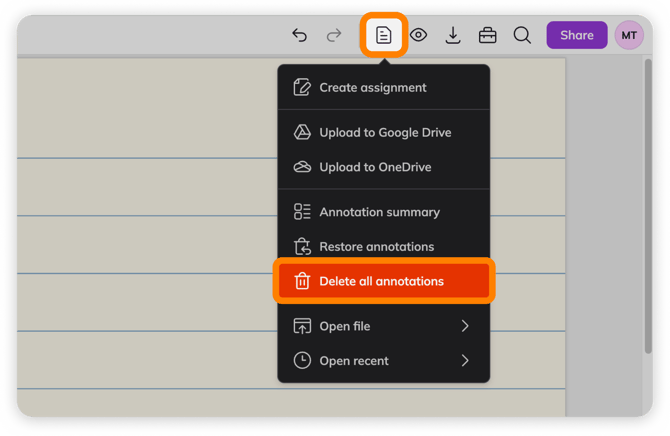
1. In the top Navigation bar, select the File button.
2. Select Delete all annotations in the Menu dropdown.
3. In the pop-up window that opens, select Delete My Annotations.
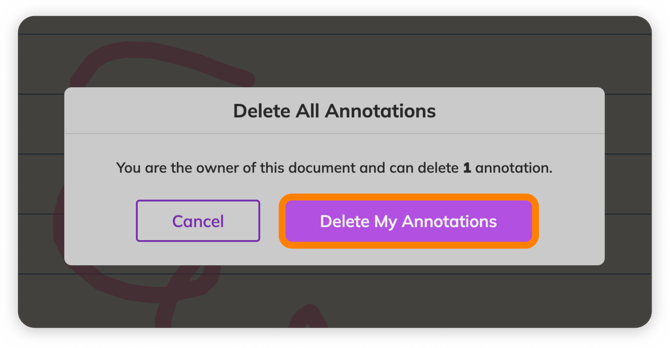
💡 Teachers who own the document will also have the option to Delete all annotations here, not just their own.