
Who is this for?
✓ Teachers.
✓ Requires a Kami paid plan.
To complete the steps in this article, your admin must first install the Kami external tool integration in Toddle.
How to create a Kami assignment in Toddle
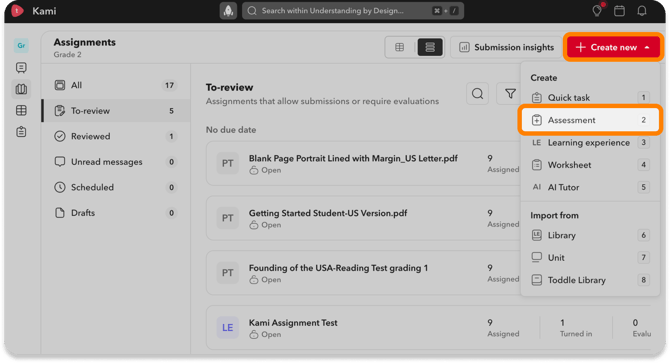
1. Navigate to the desired grade level from your Toddle homepage. On the Assignments view, select the Create new button, then select Assessment from the drop-down options.
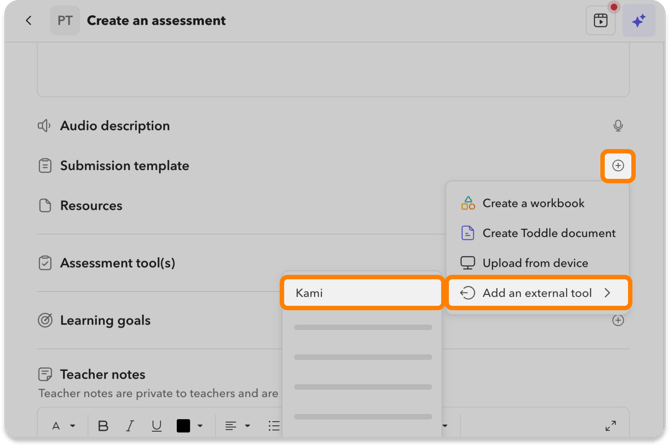
2. In the Create an assessment window that opens, fill in the details of your assignment, then scroll down to the Submission template section.
Select the plus (+) button on the right side, then hover over the Add an external tool option and select Kami.
3. In the Kami window that opens, you can attach a file to the assignment. You'll also have the options to configure Feature Control and Assessment Mode. When finished, select the Attach button to save and return to Toddle.
-png.png?width=670&height=482&name=Toddle_Assignments_Screenshot%20(3)-png.png)
-png-1.png?width=670&height=450&name=Toddle_Assignments_Screenshot%20(1)-png-1.png)
5. A confirmation window will appear where you can configure additional settings. When finished, select the Assign button again.
-png.png?width=670&height=401&name=Toddle_Assignments_Screenshot%20(4)-png.png)
Editing your Kami assignments
If you need to make any changes to your Kami assignment after creating it, simply select the settings button on the right side of the assignment on the Assignments page, then select Edit Assignment.
-png.png?width=670&height=351&name=Toddle_Assignments_Screenshot%20(7)-png.png)