
Who is this for?
✓ Teachers who use Google Classroom as their primary LMS.
✓ Requires a Kami paid plan.
What are collaborative assignments?
Collaborative assignments allow multiple users to open the same file in Kami to work on it together.
You can create these through the standard Kami assignment creation workflow in Google Classroom by selecting the Students share one copy option (shown next to the attached file name).
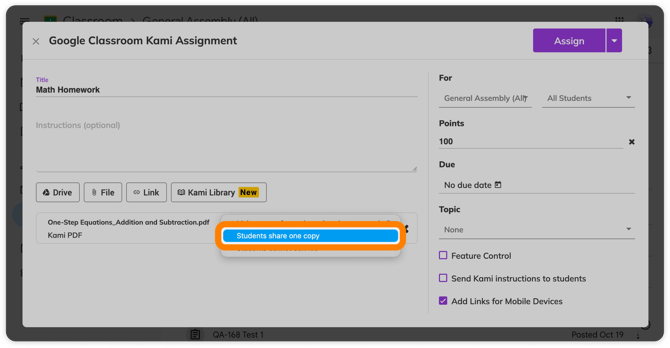
📝 When creating a Kami assignment from Google Classroom, the above-mentioned setting will only become visible after a file has been attached.
Additional features on a collaborative document
Collaborators section
On a collaborative document, you and your students will have access to the Collaborators button (located next to the undo button at the top of the document).
%20(2)-png-May-20-2026-04-16-34-0681-AM.png?width=670&height=322&name=Screenshot%20Template%20(Insert%20image)%20(2)-png-May-20-2026-04-16-34-0681-AM.png)
When selected, this opens the Collaborators panel on the right, where you can see each collaborator listed along with their current online/offline status.
%20(3)-png-May-20-2026-04-18-32-6743-AM.png?width=670&height=406&name=Screenshot%20Template%20(Insert%20image)%20(3)-png-May-20-2026-04-18-32-6743-AM.png)
All collaborators have the option to hide another user's annotations from their view by selecting the Hide button next to their name, or the Hide All button (located at the bottom of the Collaborators pane).
📝 Hiding another user's annotations will hide them only from your view; it will not remove their annotations from the document or hide them for any of the other collaborators.
Deleting student annotations (for teachers only)
Teachers can remove student annotations by hovering over the annotation and selecting the delete button (trash can icon). A warning message will appear, prompting you to confirm you want to delete another user's annotation.
%20(4)-png-May-20-2026-04-20-36-8416-AM.png?width=670&height=448&name=Screenshot%20Template%20(Insert%20image)%20(4)-png-May-20-2026-04-20-36-8416-AM.png)
Students can see the name of the user who made an annotation when they hover over it, but they can't delete or edit it.