Who is this for?
👤 Teachers using Google Classroom as their primary LMS.
👤 Requires a Kami paid plan.
Already added users to your license? Learn more about managing your active licenses and users in the license dashboard.
What is Google Classroom roster sync?
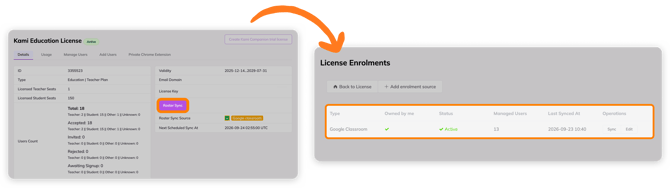
This deployment method creates a sync between your selected Google Classroom classes and your Kami license, automatically adding all students in those classes to your license.
How to add students to your license via roster sync
1. Navigate to the Kami license dashboard and select Manage License next to the desired active license.
%20(4)%2011-58-24%E2%80%AFAM-png.png)
2. Open the Add Users tab, then scroll to the bottom of the page and select Google Classroom Students Roster Sync, and select Roster Sync.
%20(1)-png-May-29-2026-03-27-56-1749-AM.png)
3. Scroll to the bottom of the window and select the Roster Sync button.
-png-Jun-01-2026-10-05-52-7621-PM.png?width=670&height=395&name=Screenshot%20Template%20(Insert%20image)-png-Jun-01-2026-10-05-52-7621-PM.png)
4. Here, you will see all your classes that are currently synced. You can add more classes by selecting the Add enrollment source button > Add Google Chrome Students.
%20(2)-png-Jun-01-2026-10-11-47-7771-PM.png?width=670&height=241&name=Screenshot%20Template%20(Insert%20image)%20(2)-png-Jun-01-2026-10-11-47-7771-PM.png)
5. In the window that opens, you can select the classes you have access to and sync them with your Kami license; simply click the arrow next to the desired class, then select Save Selection when finished.
%20(1)-png-Jun-01-2026-10-11-43-6355-PM.png?width=670&height=285&name=Screenshot%20Template%20(Insert%20image)%20(1)-png-Jun-01-2026-10-11-43-6355-PM.png)
📝 If any new students join a class that is synced here, they will automatically be added to the License. Automatic sync happens every 12 hours.
After completing the above steps, you can view and manage your roster and license sync through the Kami License dashboard.
Clicking the Manage License button will direct you to the Details page. Here, you can view your Roster Sync information. Click the Roster Sync button to view the information in greater detail.