
Adding Users to your Kami Companion License
Users must be added to your license to access Kami Companion. Please follow the steps below to ensure you grant access to the correct users.

1. Go to your license dashboard
Follow this link to navigate to your Kami license dashboard.
2. Start managing your license
Look for a license labeled Kami Companion and click the Manage License button.
3. Review your users
Click the Manage Users tab to view a list of users who are currently on your license.
4. Add users to your license
Open the Add Users tab to start adding users to your license. Learn more about each Companion license deployment method below to determine what works best for you.
Companion license deployment methods
In the Add Users tab for your Companion license, you can view each available deployment method used to add users to your license.
%20(1)-png-Jun-08-2026-11-55-43-3270-PM.png?width=670&height=402&name=Screenshot%20Template%20(Insert%20image)%20(1)-png-Jun-08-2026-11-55-43-3270-PM.png)
-
Add User to License by email: This method allows you to simply enter the desired user's email(s) to add them to the license. If you are adding more than one user, make sure to separate them line by line or by a comma.
-
Add/Remove Users to License using CSV: With this method, you can upload a CSV file containing a list of the user emails to be included on the license.
This option is useful when you want to add or remove a large number of users at once (as opposed to manually typing/pasting each email in the above method).
The CSV file can be created in either Google Sheets or Microsoft Excel, and should contain a single column of the user emails. If needed, you can download a sample CSV file for reference. -
Deploy License to Google Workspace Organization Unit: This method is designated for Google Workspace Admins and allows you to deploy your Google OU to this license. You must be a Kami License Admin and have the appropriate Google Admin permissions from your district to use this method.
This process functions by syncing information between your Google Workspace and Kami. Your basic Google Org Unit user information is shared with your Kami license, automatically adding all users from the selected org units to the Kami license.
This is only a one-way sync. Therefore, adding or removing users from the Kami license will not be reflected on the Google Org Unit side. If you add or remove users from the Google Org Unit, this will be reflected in the Kami license after the next automatic sync.
⛔️ If anything is changed in your Google Workspace Org Unit (i.e new Org Unit added or existing org unit removed), you will need to redeploy/re-sync the Google Org Unit deployment on Kami.
Deploying the Kami Extension
Kami Companion requires the Kami Extension to be installed on your browser.
Please refer to this guide for step-by-step instructions on deploying the Kami Extension to your entire School or District.
If you have already deployed your extension, make sure that you disable version pinning in your apps and extension settings. Users will not be able to update Kami Companion to the latest version unless this option is disabled.
Alternatively, you can install the Kami extension manually through the Edge or Chrome Web Store.
Opening Kami Companion
Before notifying your users, we recommend checking the Kami Extension version to ensure it is up to date. For assistance with updating the extension to the latest version, refer to this guide.
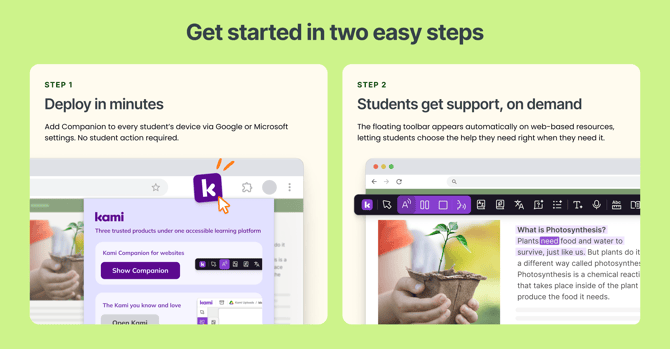
After deploying the extension, you can access Kami Companion by simply clicking the Kami extension icon and selecting Show Companion.
Frequently Asked Questions
- How do I give my teachers and students access to Kami Companion?
First, make sure they have the Kami Extension installed and that it is added to your Kami Companion license. Your license admin can give teachers and students access to Kami Companion in their license dashboard.
- Can I reassign a license seat to another student?
Yes, your license admin can assign and revoke seats as many times as you need.
-
Can my teachers use this?
Yes, teachers just need to be assigned a license seat, as you would a student.
- What happens when you release a new feature in Kami Companion-- do I need to pay more?
Your license includes access to all future Kami Companion features for the duration of the license (1 year).
- What is the current version of Kami Companion?
The latest version of Companion can be found in our Updating Companion guide.
To ensure your school or district is automatically upgraded to the latest version when a new one is released, we recommend installing the Kami private Chrome extension.-
Can I disable access to AI features if I don’t want them?
Yes, access to AI features can be controlled in your license dashboard via the feature permissions tab.
- How do teachers set feature permissions for students?
This functionality is not available yet, but is coming in a future update.
-
Which websites are supported?
Our team is constantly updating website support. If you have a specific website you'd like prioritized, please reach out to product@kamiapp.com.