
Who is this for?
✓ ClassLink Administrators with access to the school or district's ClassLink Roster Server.
✓ Requires a Kami School or District Plan.
This guide provides steps to set up sharing of your school or district roster data with the Kami application via ClassLink's Roster Server.
Key Features and Benefits
The integration between ClassLink Roster Server and Kami offers significant benefits for school and district administrators by automating the provisioning of user accounts and license seats.
-
Sync user accounts and license affiliations directly from ClassLink: We provision the user accounts and ensure the correct license affiliation is established based on the rostered data.
-
Automate user additions and updates as rosters change: New users and enrollment changes are automatically processed, ensuring that accounts are always up to date.
-
Automated syncing of rostering and license data: This integration delivers continuous, automatic updates for both user data and license coverage.
-
No more time-consuming CSV uploads: We eliminate the need for manual, periodic data management.
-
Fewer errors and greater accuracy: By syncing directly from your source data in ClassLink, we ensure greater data integrity and reduced administrative errors.
Requirements
To successfully share your ClassLink roster data with Kami, the following prerequisites must be met:
-
You must have an active Kami School Plan or District Plan.
-
You must have Administrator access to your school or district's ClassLink Roster Server.
-
The Kami App must be available within your ClassLink Roster Server environment.
-
Your ClassLink Roster Server must be actively syncing data from your Student Information System (SIS).
If you're a Google Classroom user, you can add your students to your license using a Google Classroom Class. For more details, refer to this guide: Adding students to your license via Google Classroom roster sync.
How to share your ClassLink roster with Kami
1. From the Roster Server dashboard, hover over Apps and select All Applications.
Click the + ADD button in the top-right corner of the Applications screen.
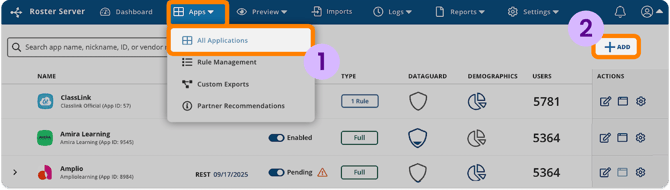
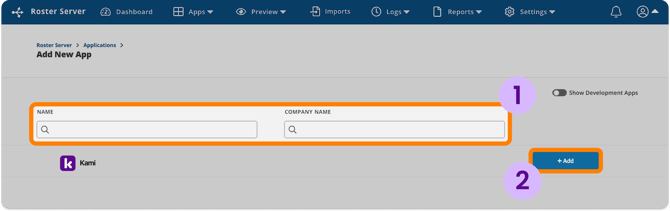
2. In the Add New App screen, search for 'Kami' in the Name field. Click the + Add button next to the Kami result.
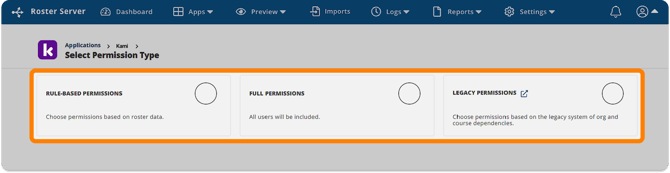
3. On the next page, you'll be prompted to set the app's permissions from the following options:
-
-
Rule-Based is the recommended option when you need to limit access to specific roster data.
-
Full shares all student and staff roster data with the application.
-
Legacy Custom isn't recommended for new application setups. Use Rule-Based or Full permissions instead.
-
We recommend choosing the Full Permissions option for the smoothest and easiest experience. This can also be reconfigured later.
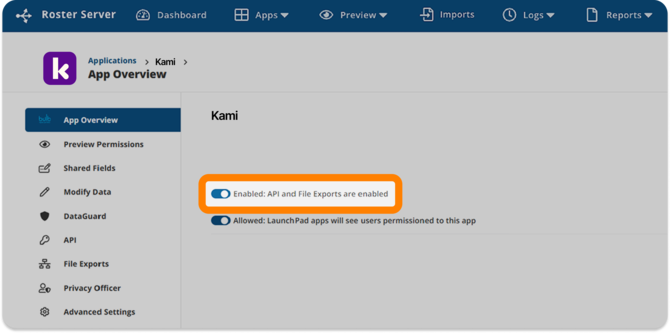
4. After the Kami app has been added and its permissions have been set, navigate to the App Overview page and toggle the Enable API and File Exports setting on. The switch will turn blue when enabled.
After your Account Manager receives that information, we will take it from there and set up the integration on our end. We'll be in touch with you once it is ready to go!
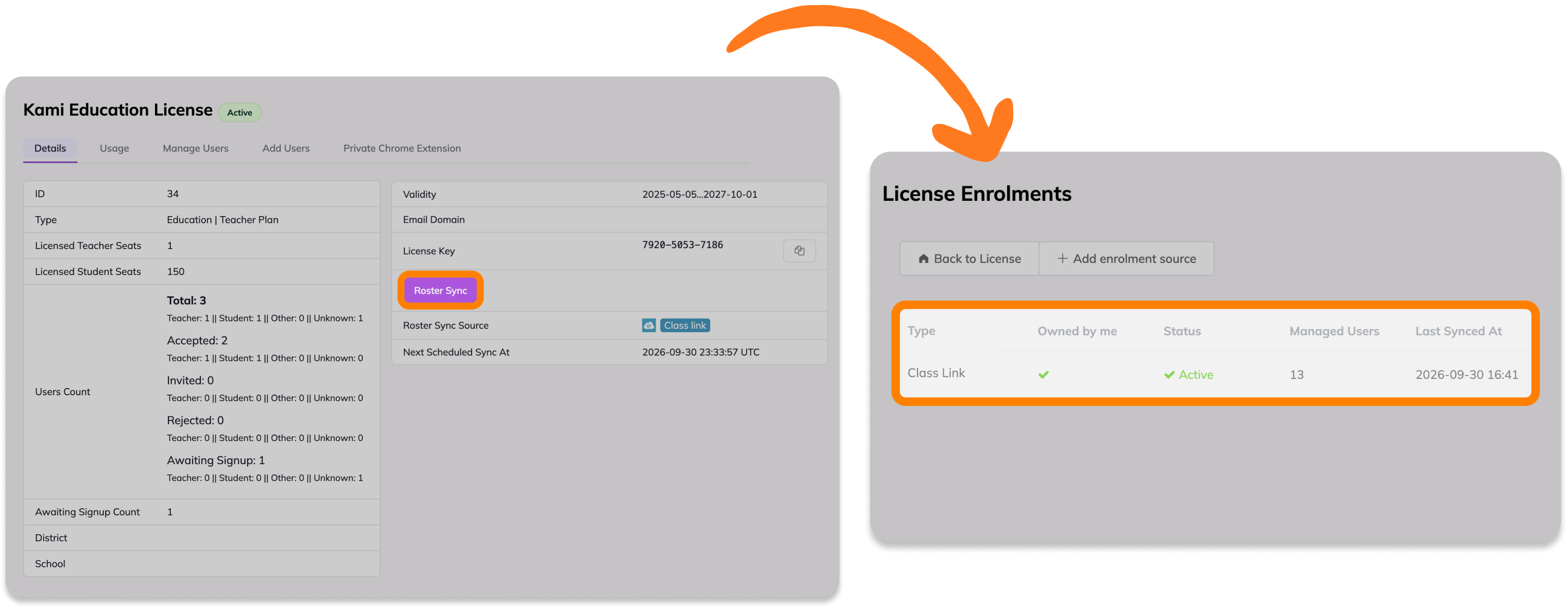
6. When you receive confirmation from your Kami Account Manager that the integration has been set up, you can view and manage your roster and license sync through the Kami License dashboard.
Clicking the Manage License button will direct you to the Details page. Here, you can view your Roster Sync information. Click the Roster Sync button to view the information in greater detail.
ClassLink Roster Data Field Sharing Requirements
Below are the tables for all the data fields that are shared by default when you select the Full Permissions sharing option. Note that our requirements are subject to change, and these permissions may need adjustment.
Required: Must be present for Kami's integration to function correctly.
Supported: Kami stores this information, but it is not critical for functionality. These fields can be anonymized if you choose to share this information.
Unsupported: Kami does not store this information and should not be shared with Kami.
Orgs
|
Field Name |
Required |
Supported |
Unsupported |
|
sourcedId |
✓ |
- |
- |
|
dateLastModified |
✓ |
- |
- |
|
type |
✓ |
- |
- |
|
status |
✓ |
- |
- |
|
name |
✓ |
- |
- |
|
identifier |
- |
✓ |
- |
|
parentSourcedId |
- |
✓ |
- |
|
NCESId |
✓ |
- |
- |
|
mdrpid |
- |
✓ |
- |
|
orgStateId |
- |
✓ |
- |
|
gradeRange |
- |
✓ |
- |
|
address1 |
- |
✓ |
- |
|
address2 |
- |
✓ |
- |
|
city |
- |
✓ |
- |
|
state |
- |
✓ |
- |
|
postCode |
- |
✓ |
- |
|
phone |
- |
✓ |
- |
|
principal |
- |
✓ |
- |
|
principalEmail |
- |
✓ |
- |
Courses
|
Field Name |
Required |
Supported |
Unsupported |
|
sourcedid |
✓ |
- |
- |
|
dataLastModified |
✓ |
- |
- |
|
orgSourcedId |
✓ |
- |
- |
|
status |
✓ |
- |
- |
|
title |
✓ |
- |
- |
|
courseCode |
- |
✓ |
- |
|
subjects |
- |
✓ |
- |
|
grades |
- |
✓ |
- |
|
subjectCodes |
- |
✓ |
- |
|
courseStateId |
- |
✓ |
- |
|
schoolYear |
- |
✓ |
- |
Classes
|
Field Name |
Required |
Supported |
Unsupported |
|
sourcedId |
✓ |
- |
- |
|
dateLastModified |
✓ |
- |
- |
|
courseSroucedId |
✓ |
- |
- |
|
schoolSourcedId |
✓ |
- |
- |
|
status |
✓ |
- |
- |
|
title |
✓ |
- |
- |
|
classType |
✓ |
- |
- |
|
termSourcedIds |
✓ |
- |
- |
|
grades |
- |
✓ |
- |
|
location |
- |
✓ |
- |
|
subjectCodes |
- |
✓ |
- |
|
classCode |
- |
✓ |
- |
|
subjects |
- |
✓ |
- |
|
periods |
- |
✓ |
- |
|
SessionStartTime |
- |
✓ |
- |
|
SessionEndTime |
- |
✓ |
- |
|
classStateId |
- |
✓ |
- |
|
schoolYear |
- |
✓ |
- |
Users
Note: The email field must match the Kami user's email address.
|
Field Name |
Required |
Supported |
Unsupported |
|
sourcedId |
✓ |
- |
- |
|
dateLastModified |
✓ |
- |
- |
|
orgSourcedIds |
✓ |
- |
- |
|
username |
✓ |
- |
- |
|
familyName |
✓ |
- |
- |
|
status |
✓ |
- |
- |
|
enabledUser |
✓ |
- |
- |
|
role |
✓ |
- |
- |
|
givenName |
- |
✓ |
- |
|
|
✓ |
- |
- |
|
userIds |
- |
✓ |
- |
|
identifier |
- |
✓ |
- |
|
agentSourcedIds |
- |
✓ |
- |
|
grades |
- |
✓ |
- |
|
primaryOrgSourcedId |
- |
✓ |
- |
|
userMasteridentifier |
- |
✓ |
- |
|
sms |
- |
- |
✓ |
|
password |
- |
- |
✓ |
|
middleName |
- |
- |
✓ |
|
phone |
- |
- |
✓ |
|
preferredGivenName |
- |
- |
✓ |
|
preferredFamilyName |
- |
- |
✓ |
|
prefferedMiddleName |
- |
- |
✓ |
|
pronouns |
- |
- |
✓ |
|
userStateId |
- |
✓ |
- |
Enrollments
|
Field Name |
Required |
Supported |
Unsupported |
|
sourcedId |
✓ |
- |
- |
|
dateLastModified |
✓ |
- |
- |
|
schoolSourcedId |
✓ |
- |
- |
|
role |
✓ |
- |
- |
|
status |
✓ |
- |
- |
|
classSourcedId |
✓ |
- |
- |
|
userSourcedId |
✓ |
- |
- |
|
primary |
- |
✓ |
- |
|
beginDate |
- |
✓ |
- |
|
endDate |
- |
✓ |
- |
Academic Sessions
|
Field Name |
Required |
Supported |
Unsupported |
|
sourcedId |
✓ |
- |
- |
|
dateLastModified |
✓ |
- |
- |
|
type |
✓ |
- |
- |
|
endDate |
✓ |
- |
- |
|
status |
✓ |
- |
- |
|
startDate |
✓ |
- |
- |
|
schoolYear |
✓ |
- |
- |
|
parentSourcedId |
- |
✓ |
- |
Demographics
Demographics are not shared by default (even with full permissions enabled).
Roles
Kami currently doesn't download data from Roles. We use the roles field from the Users data.
|
Field Name |
Required |
Supported |
Unsupported |
|
sourcedId |
✓ |
- |
- |
|
dateLastModified |
✓ |
- |
- |
|
roleType |
✓ |
- |
- |
|
orgSourceId |
✓ |
- |
- |
|
status |
✓ |
- |
- |
|
userSourcedId |
✓ |
- |
- |
|
role |
✓ |
- |
- |
|
beginDate |
- |
✓ |
- |
|
endDate |
- |
✓ |
- |
|
userProfileSourcedId |
- |
✓ |
- |