
Who is this for?
✓ Students using Agilix Buzz.
How to complete Kami assignments in Agilix Buzz
1. Open your Kami assignment
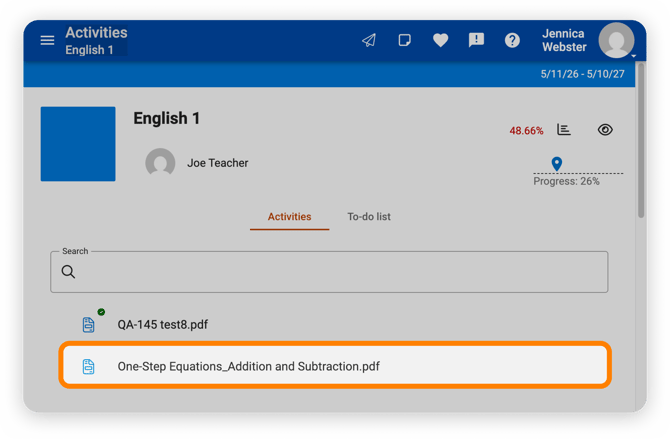
Navigate to the desired course's Activities tab, then select your Kami assignment to open in Kami.
2. Complete and submit your Kami assignment
Once your file has loaded, you can use the Kami toolbar to annotate and complete your assignment.
When you've finished your work, you can turn it in directly from Kami to Agilix Buzz by clicking the Submit button in the top-right corner of the Kami window.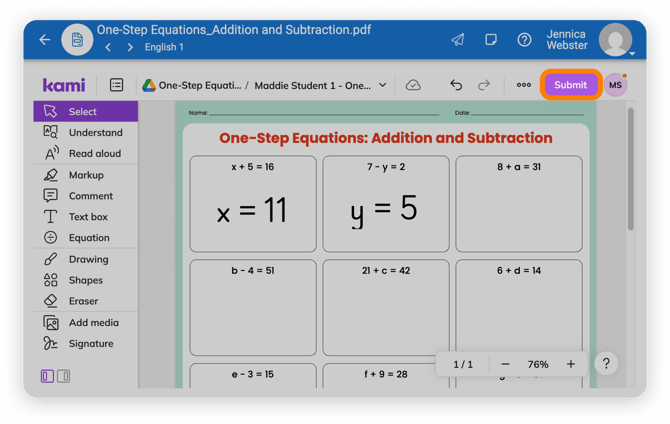 After selecting this button, you'll be prompted to confirm you're ready to turn in your work. Select Submit again to confirm.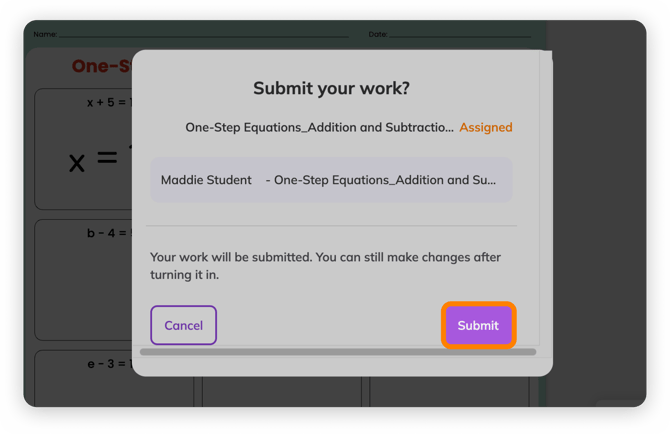
📝 After submitting your assignment, the button will then change to Unsubmit, indicating that the assignment has been successfully turned in. If you want to make changes to your assignment after submitting, simply click the Unsubmit button, edit your work, and then click the Submit button again.
3. Mark your assignment as complete
After submitting your assignment, select the Mark this activity complete button, located in the bottom left corner of the window.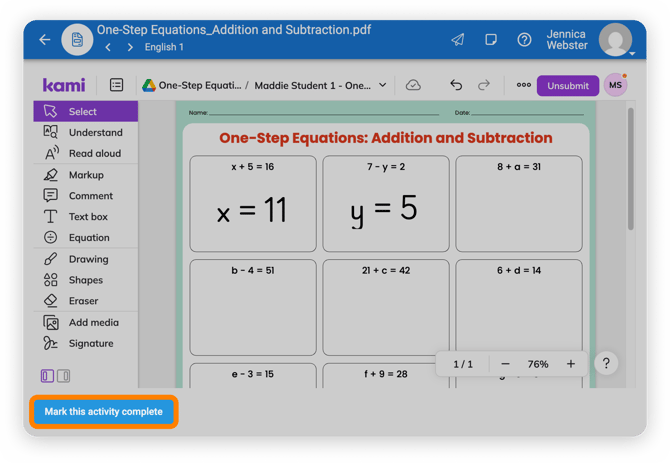 That's it! Your completed assignment will be sent back to your teacher for grading.