
Who is this for?
✓ Students and Teachers with a Microsoft account.
✓ This is a free feature; users on any Kami plan can use this.
Looking to upload/save your Kami files with Google Drive instead? Learn more about using Kami with Google Drive.
Integrating Kami with your OneDrive
Kami's integration with OneDrive makes it easier for you to open, edit, and manage all of your files. Kami saves directly to your OneDrive, so you’ll never lose any of your work.
Navigate to the main Kami dashboard, then select the OneDrive button. Choose the desired file from the OneDrive pop-up window to open it in Kami.
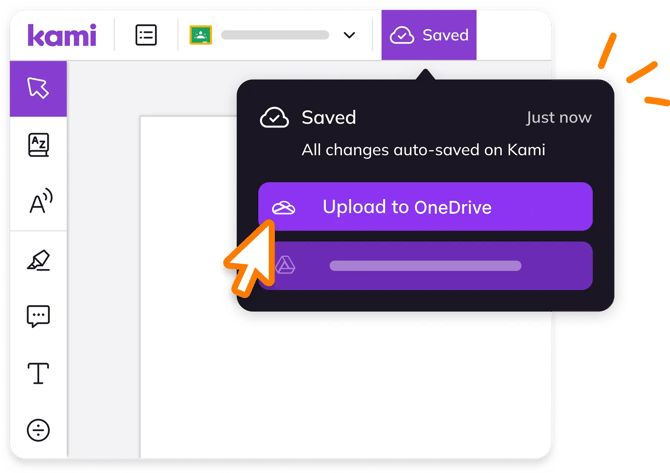
Saving your Kami documents in OneDrive
To upload your Kami document to OneDrive, select the Saved button on the top left, and then select Upload to OneDrive.
-png-1.png?width=670&height=351&name=Group%201010107034%20(1)-png-1.png)
Every time you save or export your Kami documents, they'll be located in the Google Drive 'Kami Uploads' folder. Afterwards, you can move your files to another location by selecting the move button.