
Who is this for?
✓ Users with the Kami for Google Chrome™ extension installed.
✓ Users with access to Developer mode in the Chrome extension dashboard.
Not using Google Chrome? Learn how to update the Kami extension on the Microsoft Edge browser instead.
What is the latest version of the Chrome extension?
You can find the latest Kami for Google Chrome™ release version number below. If your current extension version does not match this, we recommend upgrading to the latest version.
How to update the Chrome extension
To receive all the new features and improvements, your Kami extension must be on the latest version. To update your extension, follow one of the methods below:
Check for updates shortcut
1. Right-click the Kami extension icon in your browser toolbar to open a drop-down menu. Here, you'll find the Check for updates option.
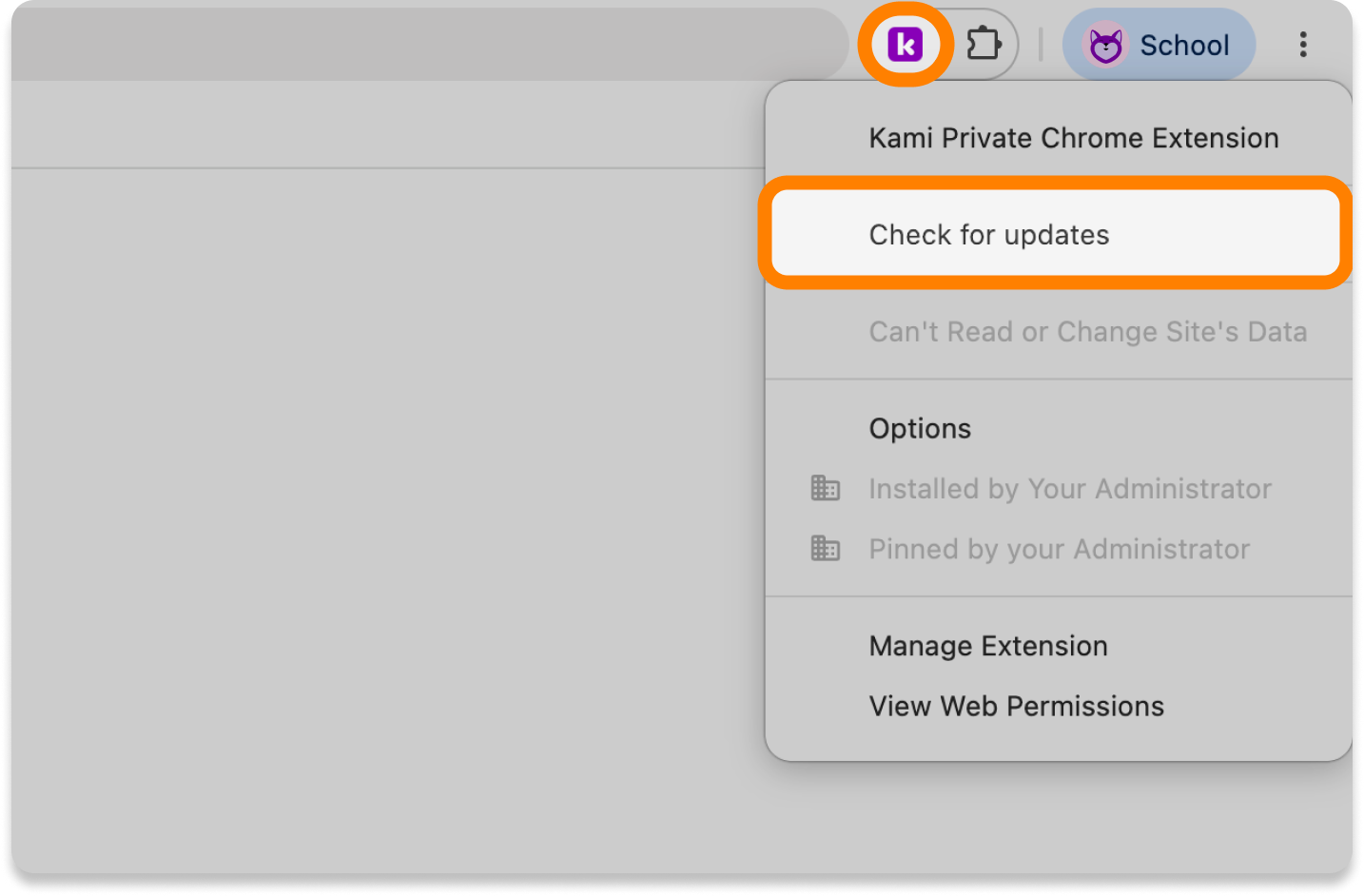
2. Clicking this automatically checks whether your Kami extension is on the latest version. If so, the pop-up below will appear, confirming no further action is needed.
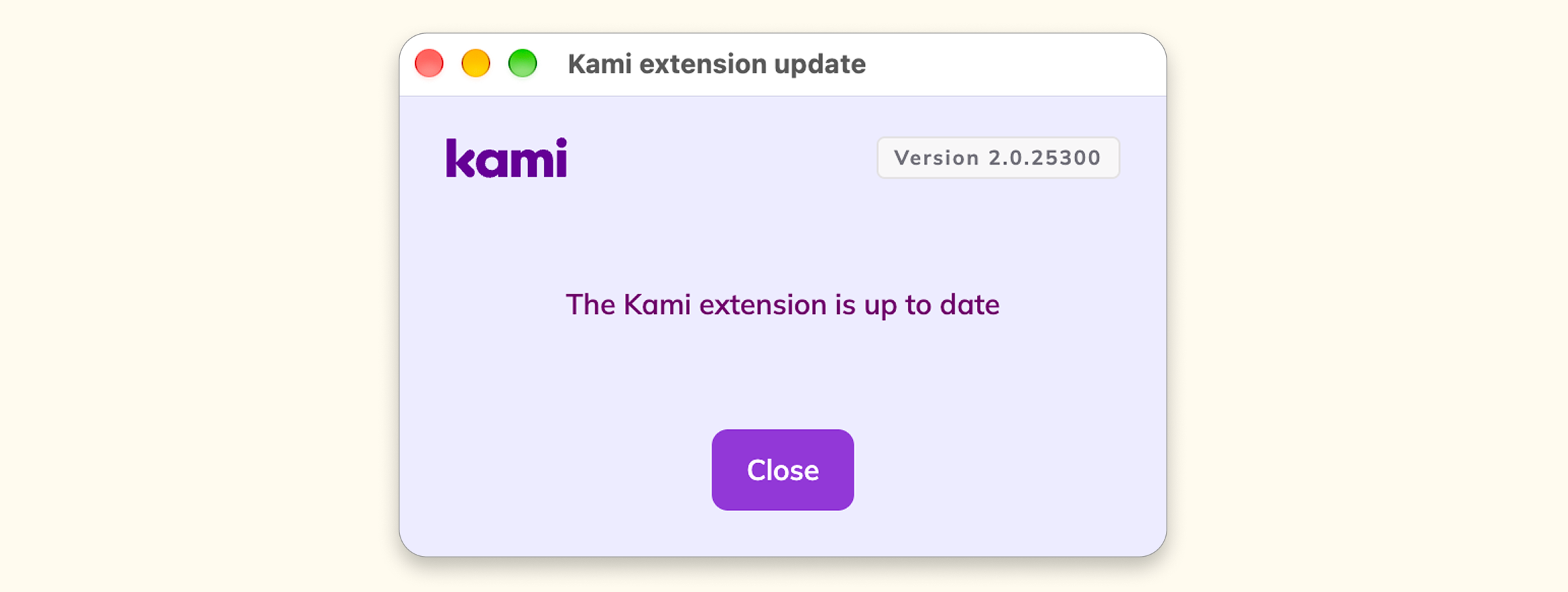
Otherwise, if an update is needed, an Install update button will appear. Simply click this to update your extension to the latest version.
-png.png)
Chrome extension dashboard
If you have access to Developer mode in the Chrome extension dashboard, you can also manually update the Kami extension there using the steps below.
⚠️ Not all school devices will have access to Developer mode, so you may need to ask your administrator to update Kami Companion for you.
If your administrator deployed the Kami extension through the Google Admin console, ask them to push the latest version to everyone, or disable version pinning to allow manual updates from the user side. Consult your Google Administrator for guidance on how best to update the extension on your school device.
1. In your Chrome browser, navigate to the Chrome extension dashboard by selecting the extension (🧩) icon to open the Extensions menu, then selecting Manage Extensions.
-png-Sep-17-2026-12-09-25-1266-AM.png?width=670&height=377&name=Screenshot%20Template%20(Insert%20image)-png-Sep-17-2026-12-09-25-1266-AM.png)
2. In the Chrome extensions dashboard, enable Developer mode via the toggle in the upper-right corner.
%20(3)-png-Jun-09-2026-12-27-29-0685-AM.png?width=670&height=333&name=Screenshot%20Template%20(Insert%20image)%20(3)-png-Jun-09-2026-12-27-29-0685-AM.png)
3. Click the Update button in the top-left corner of the page.
%20(4)-png-Jun-09-2026-12-27-21-4418-AM.png?width=670&height=358&name=Screenshot%20Template%20(Insert%20image)%20(4)-png-Jun-09-2026-12-27-21-4418-AM.png)