
Who can use this?
✓ Students and Teachers.
✓ This is a free feature; users on any Kami plan can use this tool.
What is the Split and merge tool?
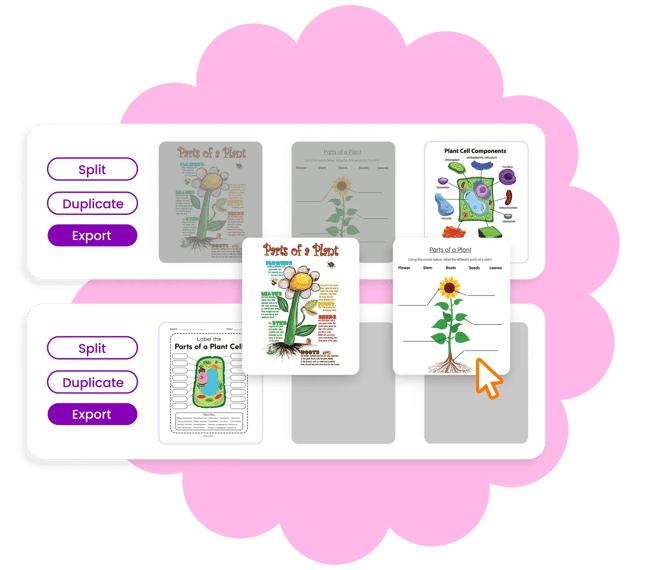
Kami’s free Split and Merge tool is designed to help you quickly customize and combine PDFs, no printer required. Whether you need to trim pages, reorder a textbook, or combine multiple files, you can do it all in just a few clicks.
What can it do?
- Remove content you don’t need.
- Rearrange pages for better flow.
- Combine several PDFs into one.
- Rotate or delete individual pages.
- Create new standalone files from selected content.
Where is the Split and merge tool?
The Kami Dashboard
You can access the Dashboard by clicking Open Kami from your Google Chrome or Microsoft Edge extension. Otherwise, go to web.kamihq.com.
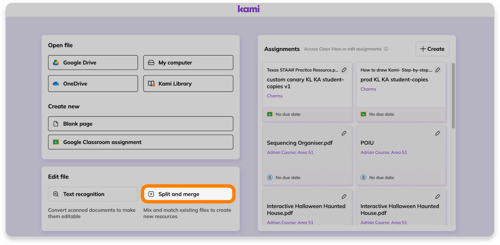
The Menu bar
Select the Tools icon in the top Navigation bar. In the dropdown, select Split and merge files to load your document into the Split and merge tool.
%20(1)-png-May-14-2026-03-40-17-9422-AM.png?width=670&height=361&name=Screenshot%20Template%20(Insert%20image)%20(1)-png-May-14-2026-03-40-17-9422-AM.png)
Or, directly at https://tools.kamihq.com/merge.
Adding files to the Split and merge tool
You can input files into the Split and merge tool from Kami, Google Drive, OneDrive, or your device.
To find materials you’ve already used in Kami, go to your Kami Uploads folder after you select Google Drive or OneDrive.
-png-May-14-2026-04-24-22-4936-AM.png?width=670&height=370&name=Screenshot%20Template%20(Insert%20image)-png-May-14-2026-04-24-22-4936-AM.png)
Once you’ve selected what you want to use, click the Next button below your materials.
How to use the Split and merge tool
Split Mode
File options
On the left of each file are three time-saving buttons:
-
-
Split Pages: Split your pages into different files. You can choose how many pages are in each "split".
-
Duplicate: Duplicate the entire file to another file.
-
Export: Export all pages as a single file to your chosen storage location.
-
%20(6)-png-1.png?width=670&height=335&name=Screenshot%20Template%20(Insert%20image)%20(6)-png-1.png)
Page options
Beneath each individual page is a menu of tools to use on that page:
-
-
Rotate pages 90 degrees by clicking the left or right circular arrow icons. This will change the page orientation when you reopen the file in Kami.
-
Expand the view of your page to get a better look by selecting the preview icon.
-
Duplicate pages by selecting the clone icon.
- Delete pages by selecting the trash icon.
-
%20(4)-png-May-14-2026-04-39-28-3007-AM.png?width=670&height=335&name=Screenshot%20Template%20(Insert%20image)%20(4)-png-May-14-2026-04-39-28-3007-AM.png)
🔍 If you make a mistake in Split & Merge, the Undo and Redo buttons have your back!
Moving pages
To separate, reorder, or add new pages, simply drag and drop.
%20(5)-png-3.png?width=670&height=335&name=Screenshot%20Template%20(Insert%20image)%20(5)-png-3.png)
-
-
Separate specific pages from others in your file by dragging the desired page into the Drag and Drop pages box. This will create a new file row.
-
Merge separate pages into one file by dragging the desired pages into the same row.
-
Rearrange your pages by dragging them into your preferred order. When you export your content to Kami, the document will appear in the order you arranged it.
-
Merge Mode
Selecting the Merge mode tab at the top of the screen lets you combine your files/pages into a single file. You can merge extra pages or entire files into a single file.
Just use the + button to add any additional materials, then drag the pages to reorder them, if needed. When you're finished, select the EXPORT ALL button in the top right and choose where you want to save your files.
-png-May-14-2026-10-38-05-2833-PM.png?width=670&height=335&name=Screenshot%20Template%20(Insert%20image)-png-May-14-2026-10-38-05-2833-PM.png)
Adding files from the Kami Library
In the Kami library, each resource has an Add to Split & Merge button.
You can select this button on as many resources as you like to add them to your Split & Merge drawer in the bottom right-hand corner.
%20(1)-png-May-14-2026-10-43-11-4883-PM.png?width=670&height=319&name=Screenshot%20Template%20(Insert%20image)%20(1)-png-May-14-2026-10-43-11-4883-PM.png)
When expanded, you'll see all your the resources that have been added to your drawer. When you're finished gathering materials, select Open in Split & Merge to further customize and export your completed file.
%20(2)-png-May-14-2026-10-45-39-8524-PM.png?width=670&height=328&name=Screenshot%20Template%20(Insert%20image)%20(2)-png-May-14-2026-10-45-39-8524-PM.png)
What file types can be used in Split and merge?
The Split and merge tool is compatible with PDFs and all other Google file formats (Slides, Docs, etc.), though they will be converted to PDFs before they’re loaded into the Split and merge tool.