
Who is this for?
✓ Google Admin users.
✓ Requires a Google Workspace for Education license.
The steps in this guide require the Kami app to be deployed to your organization via the Google Admin Workspace. For more information and installation steps, refer to this guide.
Configure access to Kami via the Google Admin Workspace
1. Setting up API controls
Before we apply the authorization changes, we must verify that the API settings are correctly configured.
First, navigate to Security > Access and Data control > API controls in the left-hand panel.
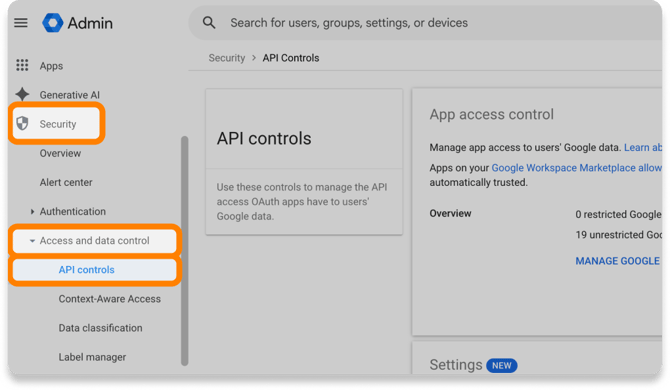
In the main area of the API controls page, select the Settings section to expand it.
-png.png?width=670&height=365&name=Group%201010108158%20(2)-png.png)
Find and select the Unconfigured third-party apps settings to review permissions.
-png.png?width=670&height=382&name=Group%201010108158%20(1)-png.png)
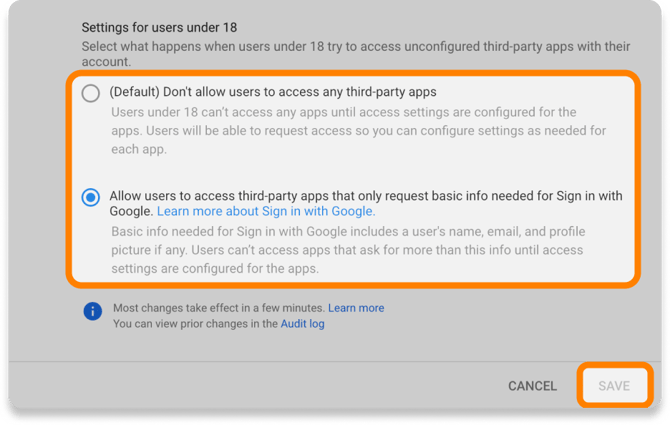
For the Settings for users under 18 permission, adjust this to the permission that best suits your organization's policies. When finished, click Save.
2. Confirm settings for configured third-party apps
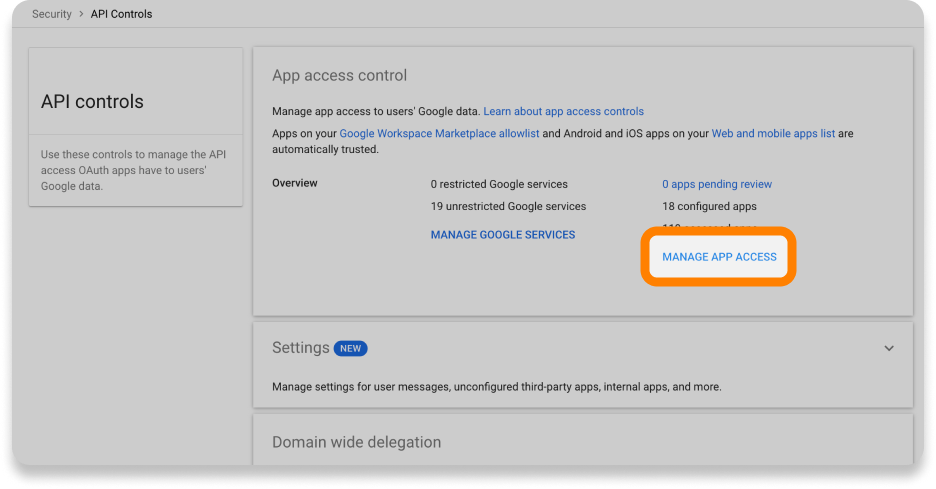
After saving, you will be returned to the API controls page. Select Manage App Access under the App access control section.
On the page that opens, select the Apps Pending Review list.
-png-1.png?width=927&height=489&name=Group%201010108158%20(1)-png-1.png)
On the next page, filter the list by App name, then type Kami into the Contains field. Click Apply to filter the results.
-png-2.png?width=927&height=321&name=Group%201010108158%20(2)-png-2.png)
🔍 If you can't see Kami under Apps Pending Review, it may already be under the Configured Apps. Check there and confirm that the app is configured as Trusted. (Note: There may be multiple Kami entries; ensure all are set to Trusted).
3. Configure Access for Kami
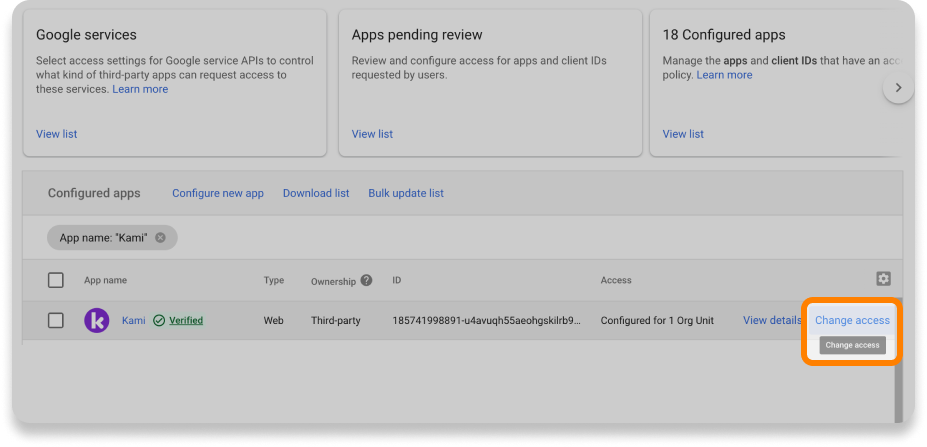
After locating Kami in your list of pending or configured apps, hover over the right side of the row to view and select the Change access button.
On the first page of the window that opens, you can configure the scope of whose access will be modified. All users in your domain will be selected by default; you can also select specific org units. Once finished, select the Next button.
-png-3.png?width=2415&height=1658&name=Group%201010108158%20(2)-png-3.png)
On the next page, you can configure the Kami app's access to Google Data for the selected users.
Select Trusted, then select the Next button.
-png.png?width=2415&height=1701&name=Group%201010108158%20(3)-png.png)
🔍 On rare occasions, a potential issue may arise relating to the traffic being blocked due to the domain's CAA (Context-Aware Access) policy, such as an "Invalid Authorization Code" error, when a user tries to load a document or log in to the Kami app.
We strongly recommend reviewing your CAA Log Events to investigate further. The exempt rule shown in the screenshot above can be used to confirm the issue's relation to the CAA policy and as a temporary fix.
Please contact us at support@kamiapp.com if this issue or a similar one occurs.
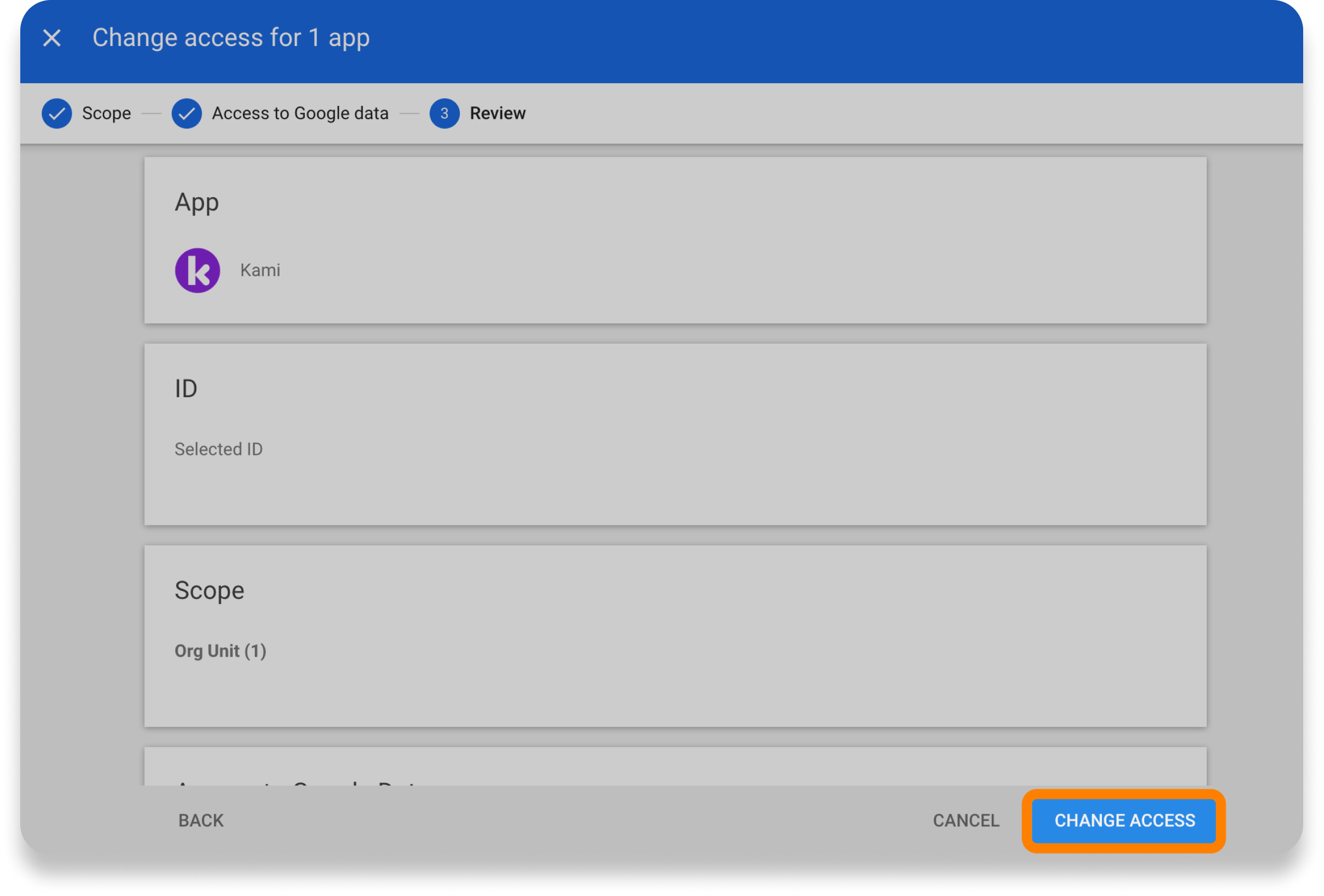
On the next page, review your changes, then select Change Access.
A pop-up window will open asking you to confirm parental consent. Read through the form, then select Confirm.
-png-3.png?width=2415&height=1635&name=Group%201010108158%20(1)-png-3.png)
Once you're done with the above steps, you're all set! Your users' access has now been confirmed. Keep in mind that these changes may take some time to take effect.