
Who is this for?
✓ Admins, teachers, and students using Kami with a Google account.
What Microsoft access does Kami need?
When you attempt actions in Kami that require additional Microsoft access, Kami may prompt you to grant the permission(s) needed for that action.
For example, trying to open a file from OneDrive that you haven't previously opened in Kami will prompt you to grant OneDrive access if you haven't already.
More access may be requested depending on your role in Kami (i.e., teachers using Kami with Microsoft Teams, or Admins configuring org-wide Kami deployments).
📝 These permissions are only used when the user attempts certain actions in Kami that require additional access. See more about our Privacy Policy.
If you previously allowed full permissions and want to revoke them, you'll need to take additional steps to remove Kami's previously shared access to your Microsoft account.
1. Navigate to the Microsoft app permsisions management page. From here, you can find the Kami app and select Edit.
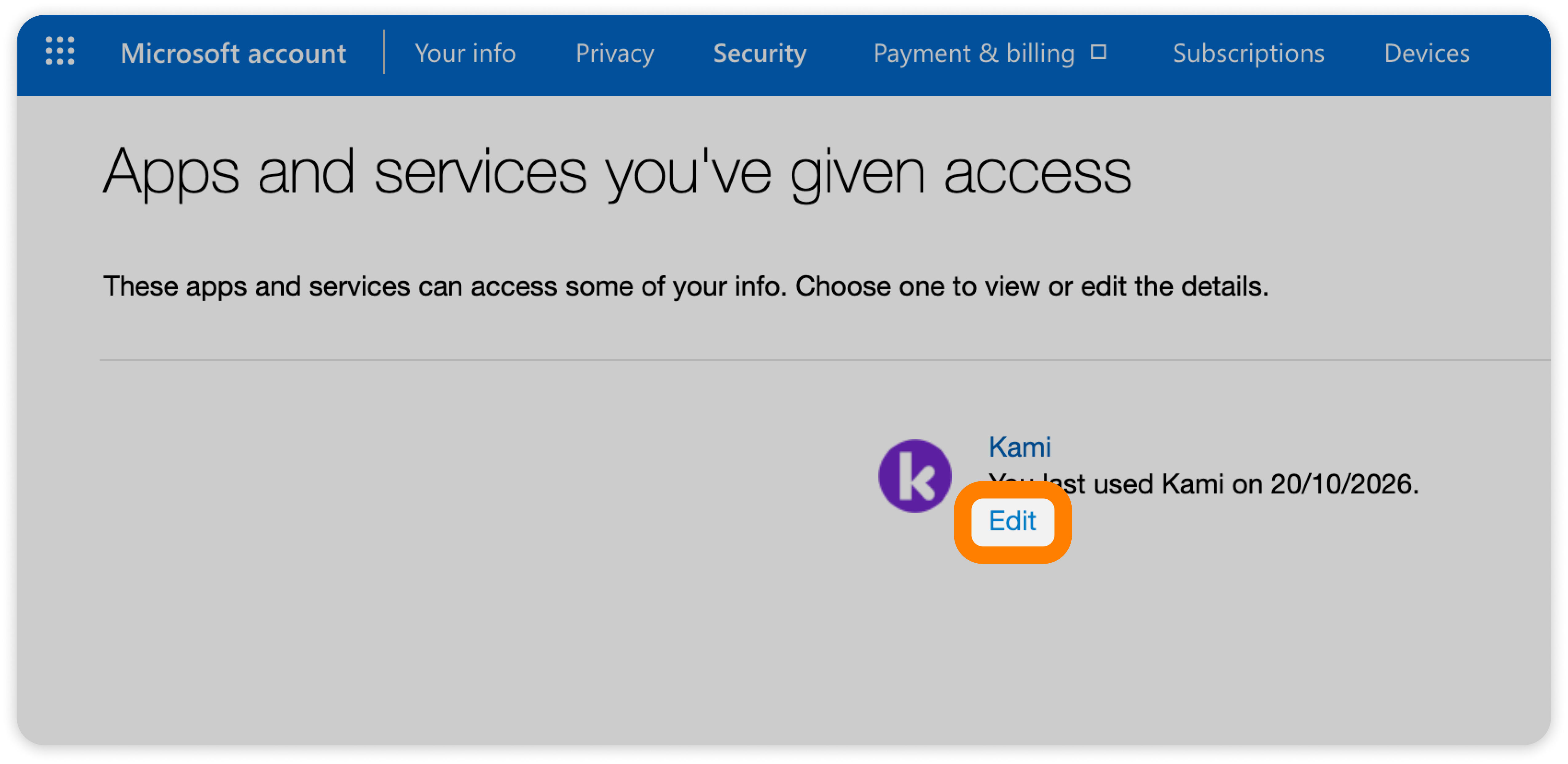
2. On the Kami app access page, you can view the permissions currently granted to the Kami app, and select Remove these permsisions to revoke them.
-png.png?width=7046&height=3638&name=Group%201010108159%20(1)-png.png)
⚠️ This is not recommended for teachers and students, as it will prevent you from using any LMS integrations.