
Who is this for?
✓ Teachers or Admin users in Canvas.
✓ Requires a Kami paid plan.
If you have admin privileges in Canvas, you can use the automatic installation method for a faster install and automatic updates.
What Kami external tool integrations are available for Canvas?
Kami has two external tool integrations (1.1 and 1.3) available to help you get more out of Canvas. With one of these installed, you can:
- Create a Kami assignment in Canvas.
- Create auto-grading assessments using Questions AI.
- Sync grades in Kami with Canvas gradebook.
- Get real-time Insights into class performance.
- Access and auto-save files in Google Drive or OneDrive.
⚠️The Kami LTI 1.3 is now available for Canvas. If you have not yet integrated Kami with Canvas, we recommend installing this integration instead.
Installing the Kami LTI 1.1 external tool integration in your courses
1. Navigate to the Settings page of your Canvas course, and then select the Apps tab.
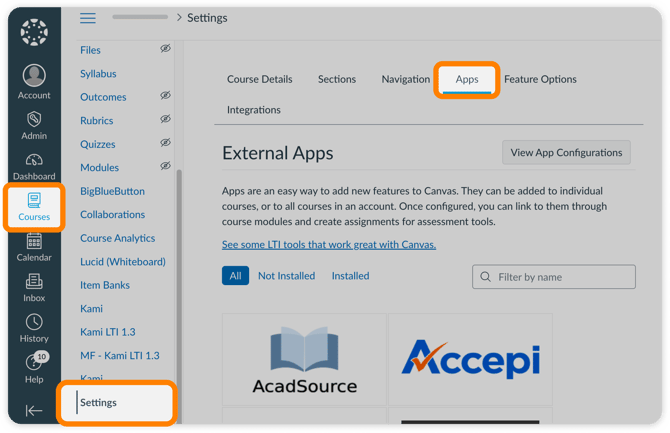
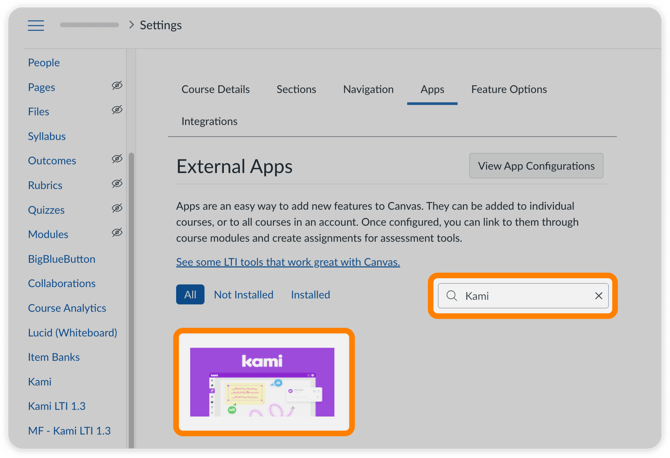
2. Use the Filter by name search bar to find and select the Kami app. Once you select Kami, the app details page will open.
3. Click Add App to install the Kami app.-png.png?width=670&height=465&name=CanvasLTI%20(1)-png.png)
4. In the Add App window that opens, you will be prompted to enter the Consumer Key and Shared Secret.
To generate your Consumer Key and Secret, select the button below:
⚠️ Please ensure that you use the same Key and Secret across all of your courses.
5. After adding your Consumer Key and Shared Secret, select the Add App button to complete the installation.-png.png?width=670&height=491&name=CanvasLTI%20(2)-png.png)
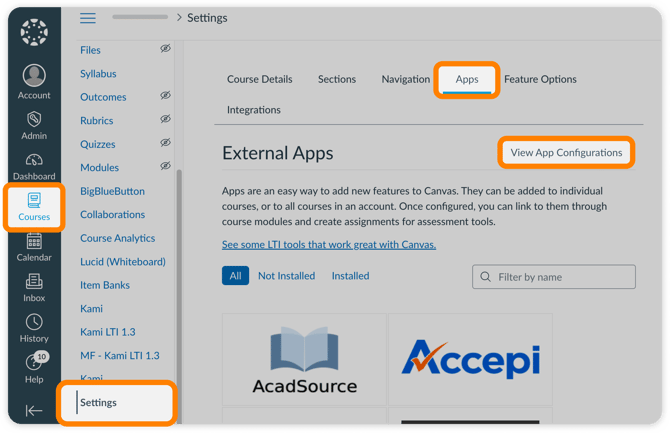
After installation, use the View App Configurations button to edit anything related to the Kami app or confirm it installed successfully.
Manually installing Kami LTI 1.1 in your courses
If you do not have a hosted domain or cannot see the App Center to complete the above steps, you can still install the Kami LTI 1.1 tool manually in your courses.
1. In the Settings section of your course, select the Apps tab, then select View App Configurations.
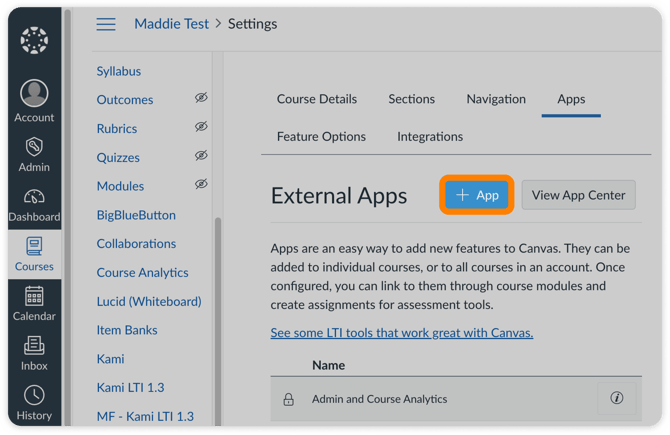
2. Select the + App button.
3. In the window that opens, set the configuration type to By URL.
Complete the setup by entering your license Consumer Key and Shared Secret (which can be generated using the steps above), and set the Config URL to the following link:
https://api.kamihq.com/lti/config.xml
When finished, press Submit to complete the installation.
-png-1.png?width=670&height=460&name=CanvasLTI%20(1)-png-1.png)