Who can do this?
👤 Students and Teachers.
👤 This is a free feature; users on any Kami plan can do this.
In addition to the Share options discussed here, separate options are also available for exporting files from Kami.
What does Flattening Annotations do?
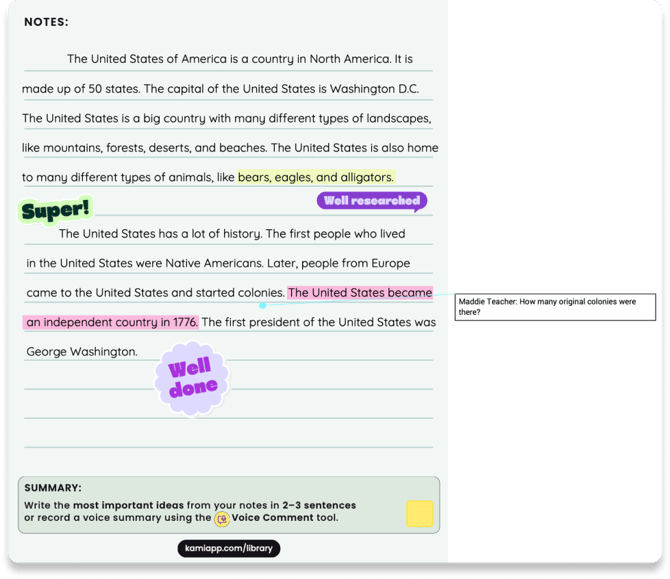
Flattening Annotations makes Kami annotations on your file uneditable, while still being visible to you and other users.
This allows for Kami tools like Read Aloud and Text Highlighter to be used on your existing annotations after running Text Recognition.
📝 Flattening a file that contains audio or video content will make that content no longer playable.
How to Flatten Annotations
When exporting a file from Kami, a window will open where you can configure your Export settings.
The Flatten Annotations checkbox is located in the Options section.
-png.png?width=670&height=429&name=Group%201010107035%20(1)-png.png)
Example
Before flattening annotations:
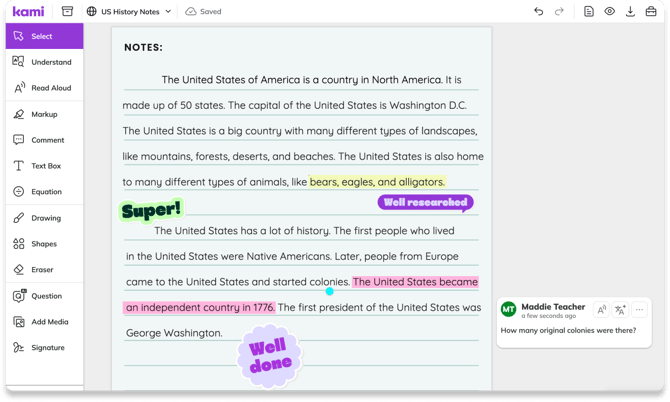
After flattening annotations: