
Who is this for?
✓ Admin users in Canvas.
✓ Requires a Kami paid plan.
What is the Kami external tool integration for Canvas?
With Kami LTI 1.3 in Canvas, users get more out of their Canvas workflows:
- Create a Kami assignment in Canvas.
- Create auto-grading assessments using Questions AI.
- Sync grades in Kami with the Canvas gradebook.
- Get real-time Insights into class performance.
- Access and auto-save files in Google Drive or OneDrive.
Installing the Kami LTI 1.3 external tool integration
Canvas administrators can install and deploy the Kami external tool integration to a specific course or to all courses within their school/domain.
You'll also receive automatic updates when a new version is released, keeping you up to date with the latest Kami tools and features.
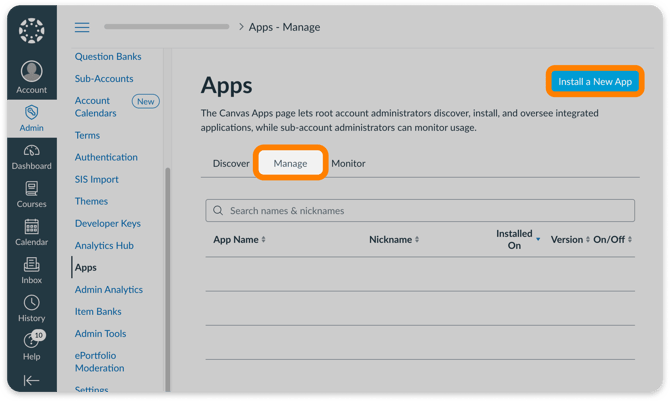
1. In Canvas, navigate to Admin > Apps.-png.png?width=670&height=459&name=CanvasLTI1-3%20(1)-png.png)
2. Select the Manage tab, then click Install a New App.
⚠️ If Kami LTI 1.1 is already in your list of installed apps, we do not recommend installing LTI 1.3 yet. We're currently working with Canvas to develop a process for existing LTI 1.1 users to safely migrate to LTI 1.3. Until then, we recommend that existing Kami LTI 1.1 users continue using this LTI to avoid any potential issues.
3. Select 1.3 as the LTI Version. Then, leave the Install Method set to Dynamic Registration, and enter the following Dynamic Registration URL:
https://api.kamihq.com/lti/oidc/register
When finished, select the Next button.
-png.png?width=670&height=457&name=CanvasLTI1-3%20(2)-png.png)
4. The next several pages will ask you to review and confirm the permissions being shared with Kami and the default settings being used for the app. Continue selecting Next until you reach the final review page.
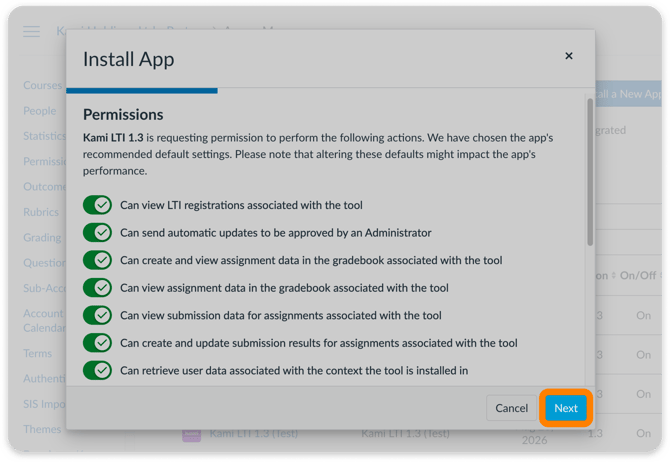
5. When you reach the confirmation page, you can scroll through the list for a final review of the permissions and changes, then select Install App.
-png-1.png?width=670&height=467&name=CanvasLTI1-3%20(2)-png-1.png)
6. Once the install has been completed, Kami LTI 1.3 will appear under your list of installed apps, where you can manage it's settings and make any other changes as needed.
By default, the app will be set to unavailable. Select the pencil icon to update this.
-png.png?width=670&height=402&name=CanvasLTI1-3%20(3)-png.png)
7. In the Edit Exception window, confirm that the drop-down selection is set to Available, then press Save.
-png-2.png?width=670&height=460&name=CanvasLTI1-3%20(2)-png-2.png)
Once you complete the steps above, Kami LTI 1.3 will be available in your Canvas courses.