
Who is this for?
✓ Student or teacher accounts.
✓ Schools or districts with the Kami app installed in Skolon.
If the Kami app is not yet installed in Skolon, please contact your Skolon admin to request it be added. They can find the Kami app in the Skolon App Store.
How to access Kami through Skolon
1. Open the Kami app in Skolon
Log in to Skolon, then navigate to the My apps tab to see all your available apps. Your Skolon admin should have installed the Kami app here. Select the Kami app. This will open the Kami app in a new browser tab.
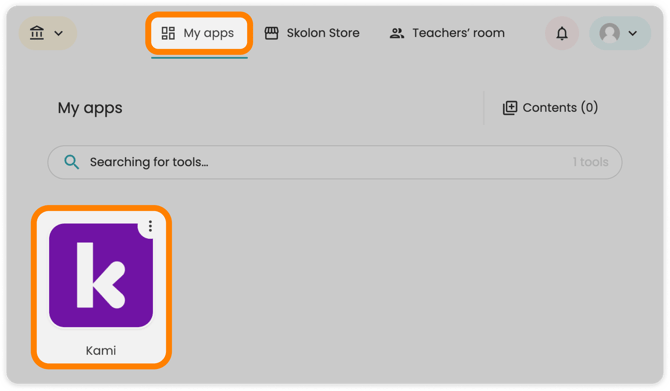
Can't see the Kami app here? Please contact your Skolon admin (usually one of your Tech admins) to request that they add Kami to your district's Skolon apps. They can find the Kami app in the Skolon App Store.
2. Link your Google or Microsoft account
If this is your first time doing this step, you will be prompted to log in with your Google or Microsoft account. This will create a new Kami account linked to the entered Google or Microsoft account, and will also be linked to your Skolon account.
If you already have a Kami account, this step is similar to when you normally log in to the Kami App. The only difference is that this step will link your Skolon account.
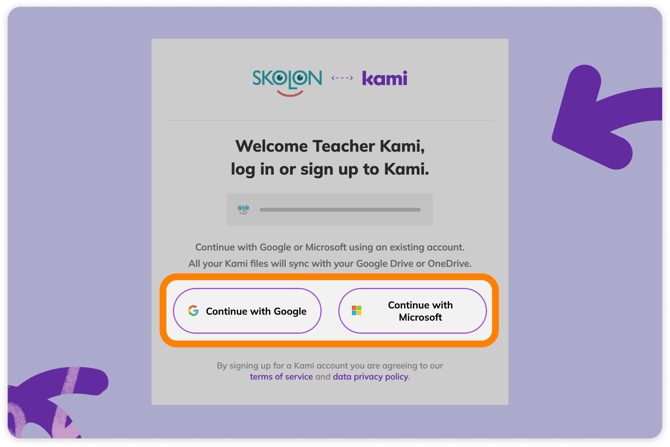
Once you link your account to Kami, you won't be able to link it to any other accounts. If you need to unlink, please contact us at support@kamiapp.com.
3. Allow permission to Kami
When first accessing Kami through Skolon, you will be prompted to review the permissions being granted to Kami. Read through the permissions, then select the Continue button at the bottom of the window.
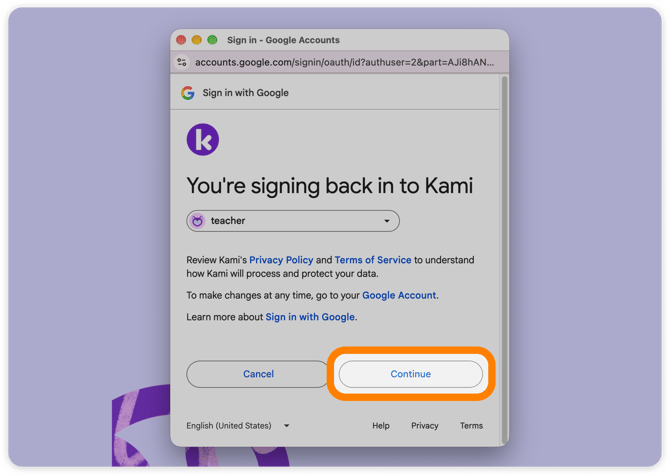
Once you've completed the steps above, your Skolon account, Google or Microsoft account, and Kami account will be linked. The page will then reload and open the Kami app.
The next time you open the Kami app from Skolon, it will open with the account you linked.