
Who can use this?
✓ Students and Teachers.
✓ This is a free feature; users on any Kami plan can do this.
Several Kami tools and features let you choose the language of their output within the tool itself. Refer to this guide for more information.
What is the Kami Display language?
In Kami, your Display language setting controls the language shown in areas like the Kami dashboard, toolbars, and menus.
This can be changed at any time, and supports the following languages:
- Afrikaans
- Deutsch (Germany)
- English (US)
- Español
- Français (Canada)
- Français (France)
- Italiano
- Nederlands (Netherlands)
- Українська
How to change the Display language
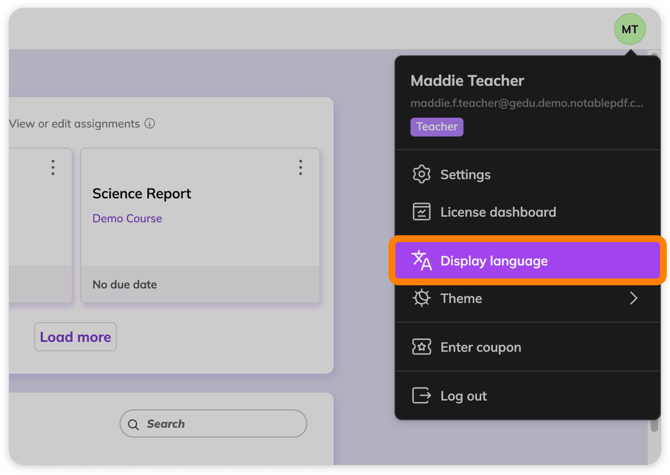
1. Navigate to the Account & Settings menu by selecting your account initials in the upper-right corner of the Kami dashboard, or when viewing a document in the app.
From there, select Display language.
| Kami Dashboard: | In-app: |
 |
-png.png?width=670&height=501&name=DisplayLanguage(1)-png.png) |
2. In the window that opens, select the current language to open the language selector. Choose the desired language from the drop-down list.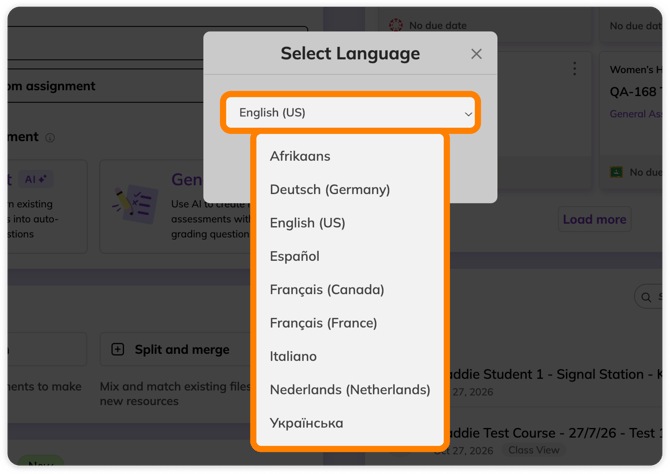
3. When finished, select Apply.-png.png?width=670&height=392&name=DisplayLanguageSetting(1)-png.png)
You can then refresh the Kami window to see your changes take effect.