Who can use this?
✓ This tool is available for Students and Teachers.
✓ Requires a Kami paid plan.
Your document pages can also be re-ordered or deleted using the Split & Merge tool.
How to insert a new page
With Kami, you can add as many pages as you'd like to your existing files.
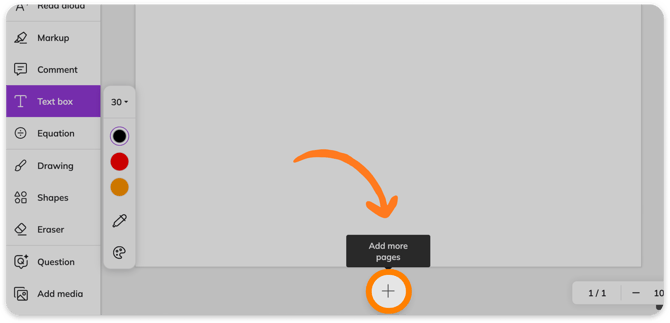
1. Scroll down to the bottom of the document and click on the Add more pages button (circular plus (+) icon).
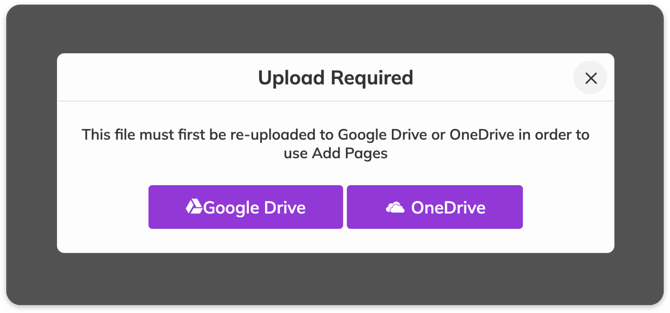
2. If you haven't already, you will be prompted to upload your document to Google Drive or OneDrive. Select either option to proceed.
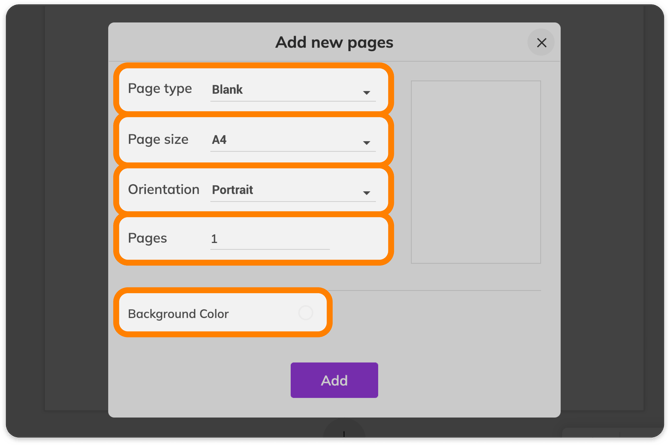
3. After uploading, the Add new pages window will open, where you can customize the page(s) being added with the following settings:
-
-
Page type — Choose from a list of page, chart, model, map, and diagram options. Otherwise, select Browse Kami Library to upload a template from the Kami Library.
-
Page size — Choose from a list of available page formats, or customize your own height and width size.
-
Orientation — Choose either portrait or landscape.
-
Pages — Set the number of pages with these settings to be added.
-
Background color — Find the perfect shade for your page from our available color palettes or create your own mix. Note: This setting is not available for the chart, model, or diagram page types, as these pages are pre-designed by Kami.
-
A preview of your design will be shown on the right side of the window.
💡 The Lined, Graph, and Music Sheet page types also allow you to customize line thickness, color, and spacing.
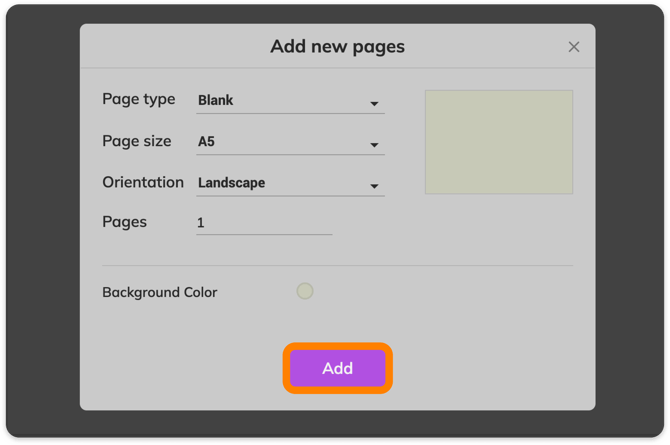
4. When you're done with your creation, select the Add button at the bottom of the window to add the new page(s). Once you've added a page, it'll appear at the bottom of your document.
To reorder or remove unwanted pages, learn more about using the Split and merge tool.