Install for your organization (all courses) For Schoology Admins
Install Kami LTI 1.1
-
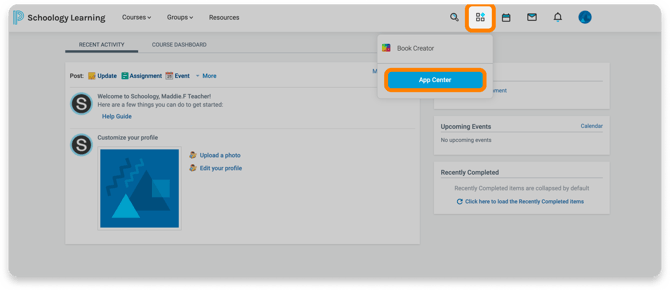
Navigate to the Schoology App Center by selecting the App icon in the top menu bar, then select App Center.
-
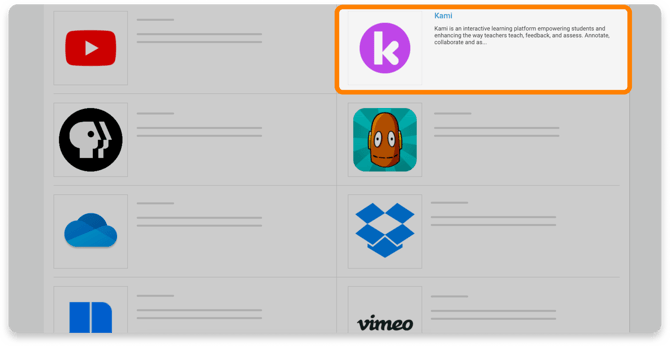
In the App Center, scroll down to find the Kami external tool.
-
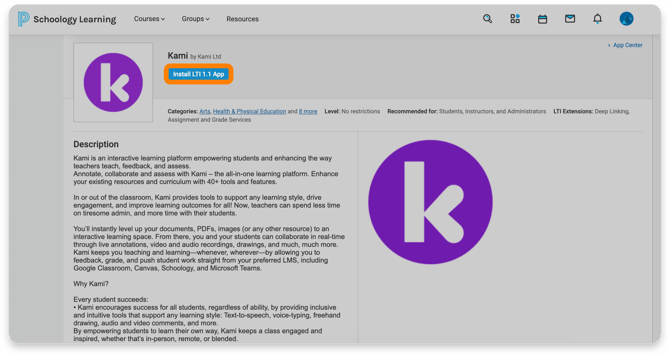
Select the Kami app to open its page, then select the Install LTI App button.
-
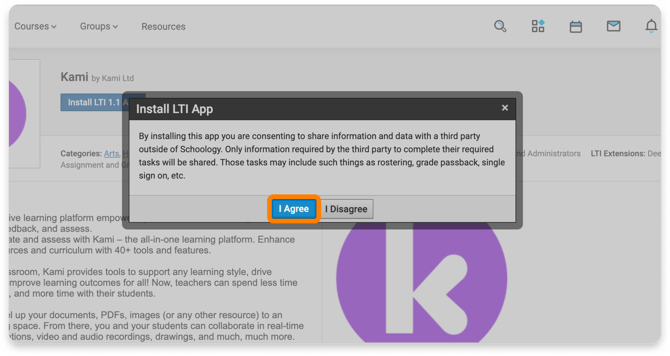
After selecting the Install button, you'll be prompted to review the LTI extension terms. When finished, press the I Agree button, then Continue.
-
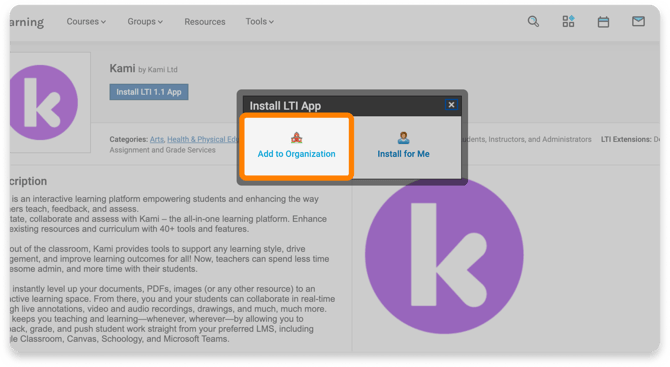
Select Add to Organization.
-
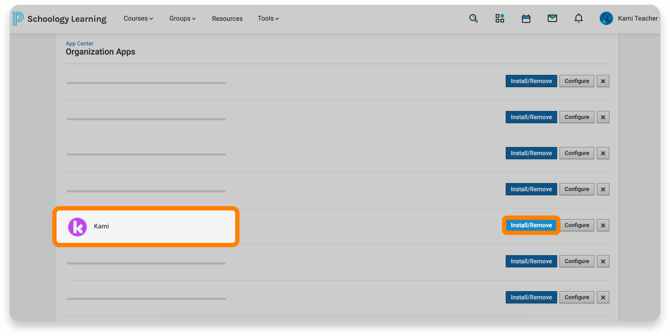
On the Organization Apps page, find Kami and select the Install/Remove button.
-
In the pop-up window that opens, select the All Courses check box, then press Submit.
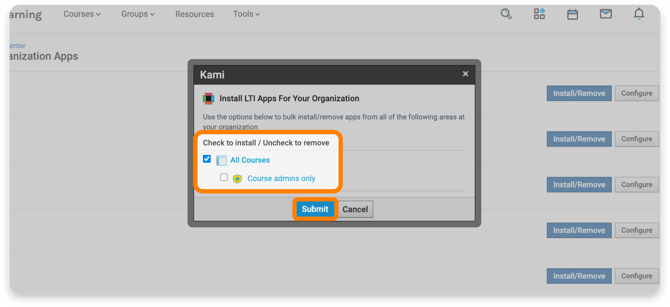
That's it! The Kami external tool integration will now be deployed to all courses in your organization for your teachers and students to use.
Configure your Consumer Key and Secret
After installing Kami in your courses, make sure the Consumer Key and Secret are set correctly. To find them, select the button below:

-
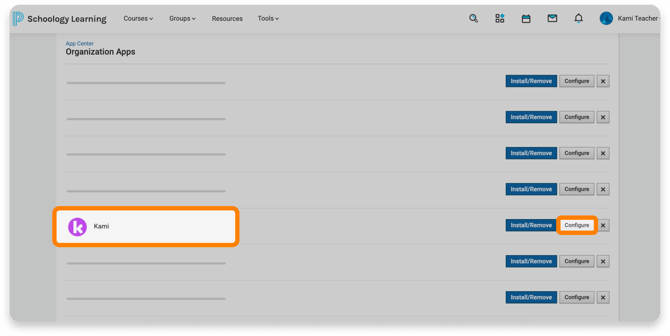
After installing, you should be redirected to your Organization Apps. Find Kami and select the Configure button.
-
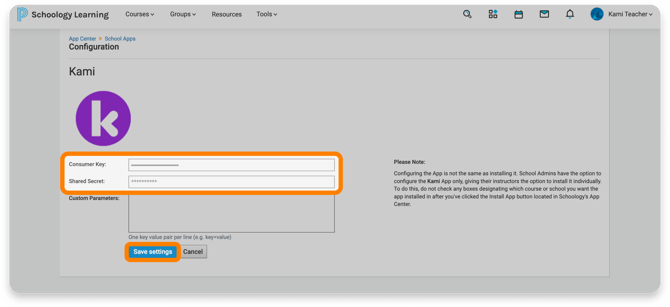
Paste the Consumer Key and Shared Secret retrieved from the Kami License Dashboard, then select Save settings.
Install on an individual course For Course Admins
Install Kami LTI 1.1
-
Navigate to the Schoology App Center by selecting the App icon in the top menu bar, then select App Center.
-
In the App Center, scroll down to find the Kami external tool.
-
Select the Kami app to open its page, then select the Install LTI App button.
-
After selecting the Install button, you'll be prompted to review the LTI extension terms. When finished, press the I Agree button, then Continue.
-
Select the courses you wish to install the Kami external tool integration on.
📝 Only courses you are a Course Admin of will be available to install the Kami LTI integration.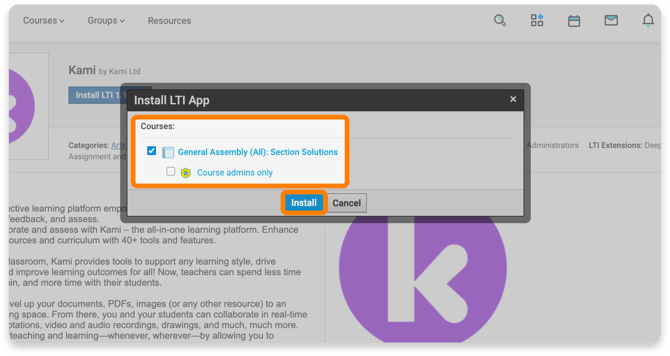
Configure your Consumer Key and Secret
After installing Kami in your selected courses, make sure the Consumer Key and Secret are set correctly for each course. To find them, select the button below:
-
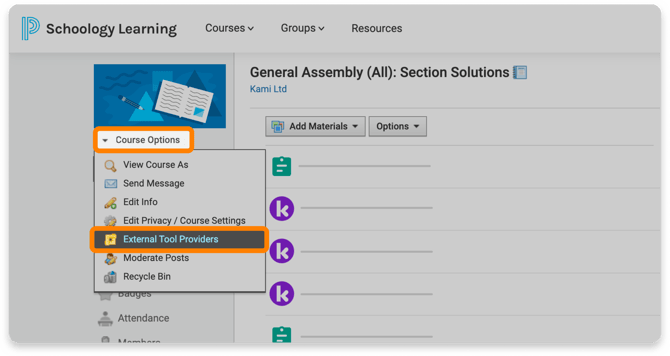
Navigate to the Course Options and select External Tool Providers from the drop-down menu.
-
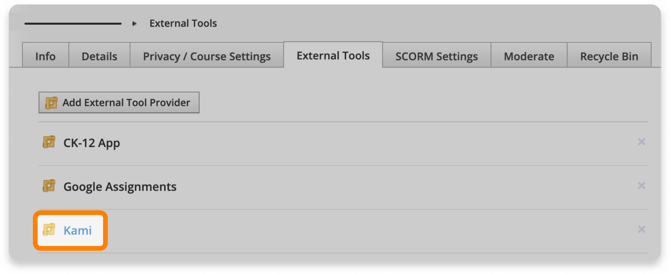
Once on the External Tools page, find and select Kami.
-
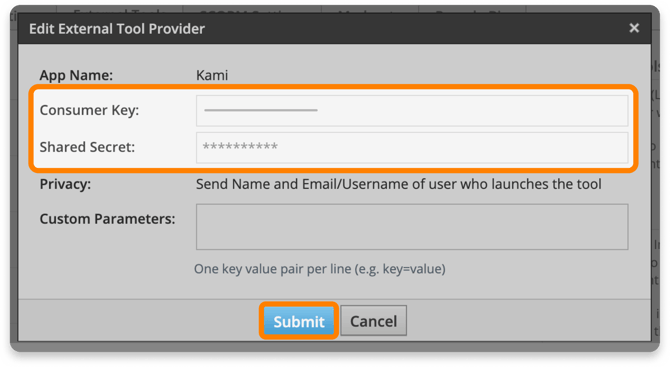
In the window that opens, you will see fields for both Consumer Key and Secret. When you're finished, click Submit to apply any changes made.
That's it! You can repeat these steps for each course you are an admin of and want to install Kami for.