
Who can use this?
✓ Students and Teachers.
✓ Requires a Kami paid plan.
One of several accessibility features available in Kami, giving every student the tools they need to learn their own way.
What is the Voice typing tool?
Voice typing (commonly referred to as Speech-to-Text) converts spoken words into written text in real time. Instead of keyboard typing, you can speak to add a text annotation to your Kami document.
Voice typing supports all learners, especially those who find traditional typing challenging or express ideas more effectively through speech.
How to use Voice typing
There are two ways to use Voice typing in Kami:
From the Comment tool
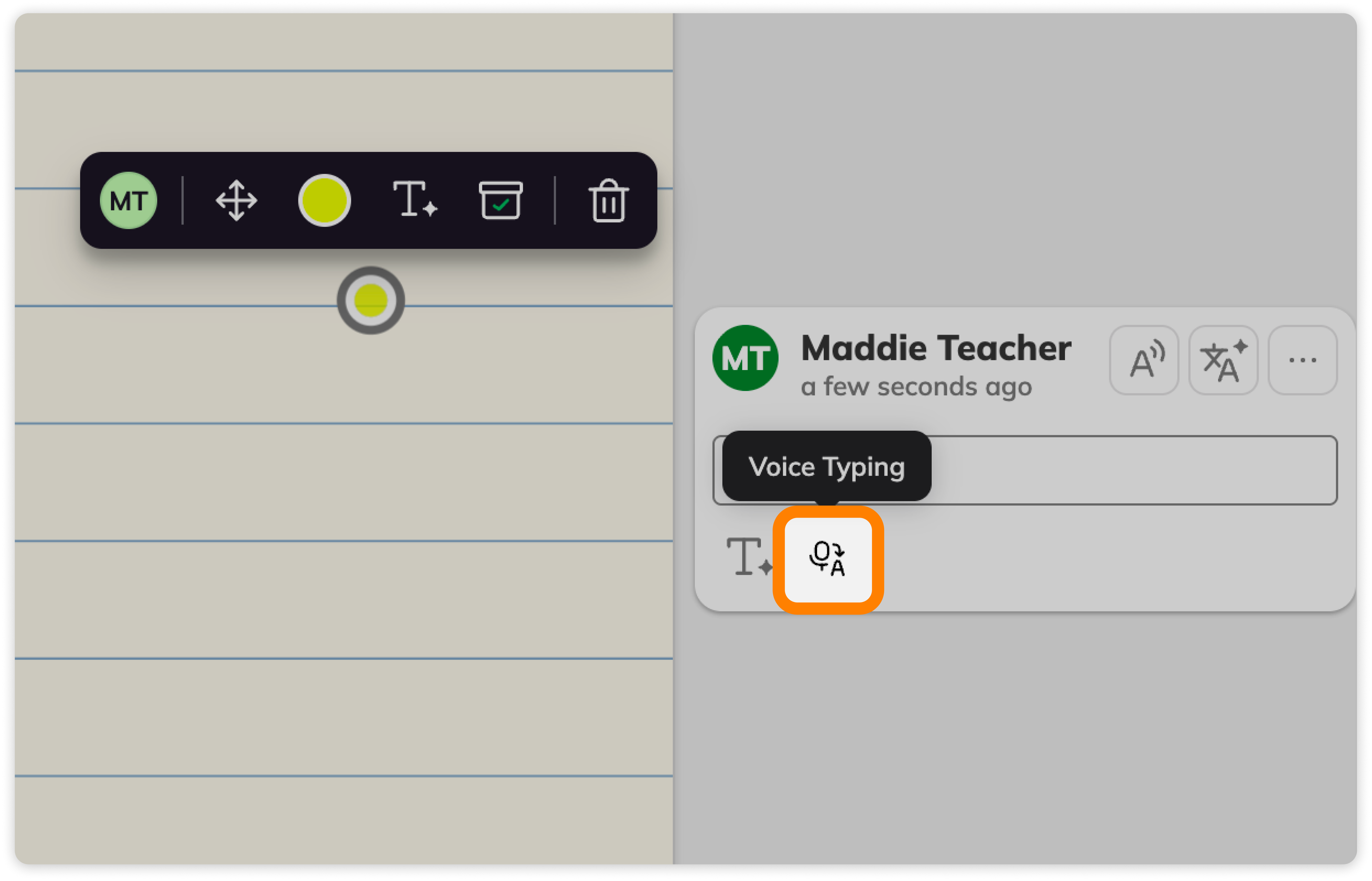
Select the Comment tool from the Kami toolbar, then click on the page to create a comment anchor point.
In the comment box that appears on the right side of the page, you can find the Voice typing icon to start recording your voice, which is automatically transcribed as text in the comment.
-png.png?width=5054&height=3245&name=VoiceTyping%20(1)-png.png)
From the Text Box tool
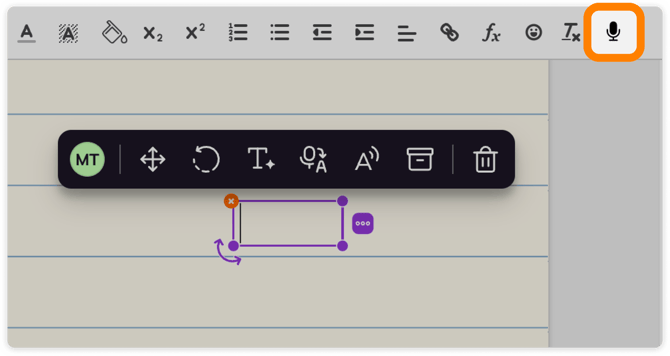
Select the Text box tool from the Kami toolbar, then click on the page to add your text box.
Once added, select the Action menu icon (...) to expand the Action menu.
Now, select the Voice typing icon to start recording your voice, which automatically converts to text in the text box.
-png.png?width=4829&height=2819&name=VoiceTyping%20(2)-png.png)
Alternatively, you can select the microphone icon in the Text formatting bar at the top of the screen to enable Voice typing.
Changing the language detection for Voice Typing
You can change the language used for Voice typing in the Kami settings.
📝 Voice typing in Kami does not automatically translate your speech to the language selected in the settings. This language setting is designed to better recognize your specific accent and the words you use.
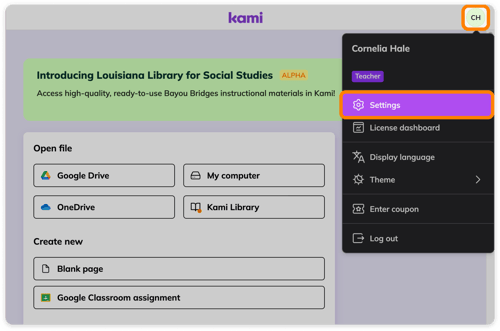
1. Select the Account & settings menu in the top right corner to reveal a drop-down menu, where you can find the Settings button.
2. In the Settings window, navigate to the App settings tab. Here, you can find the Voice typing language setting.
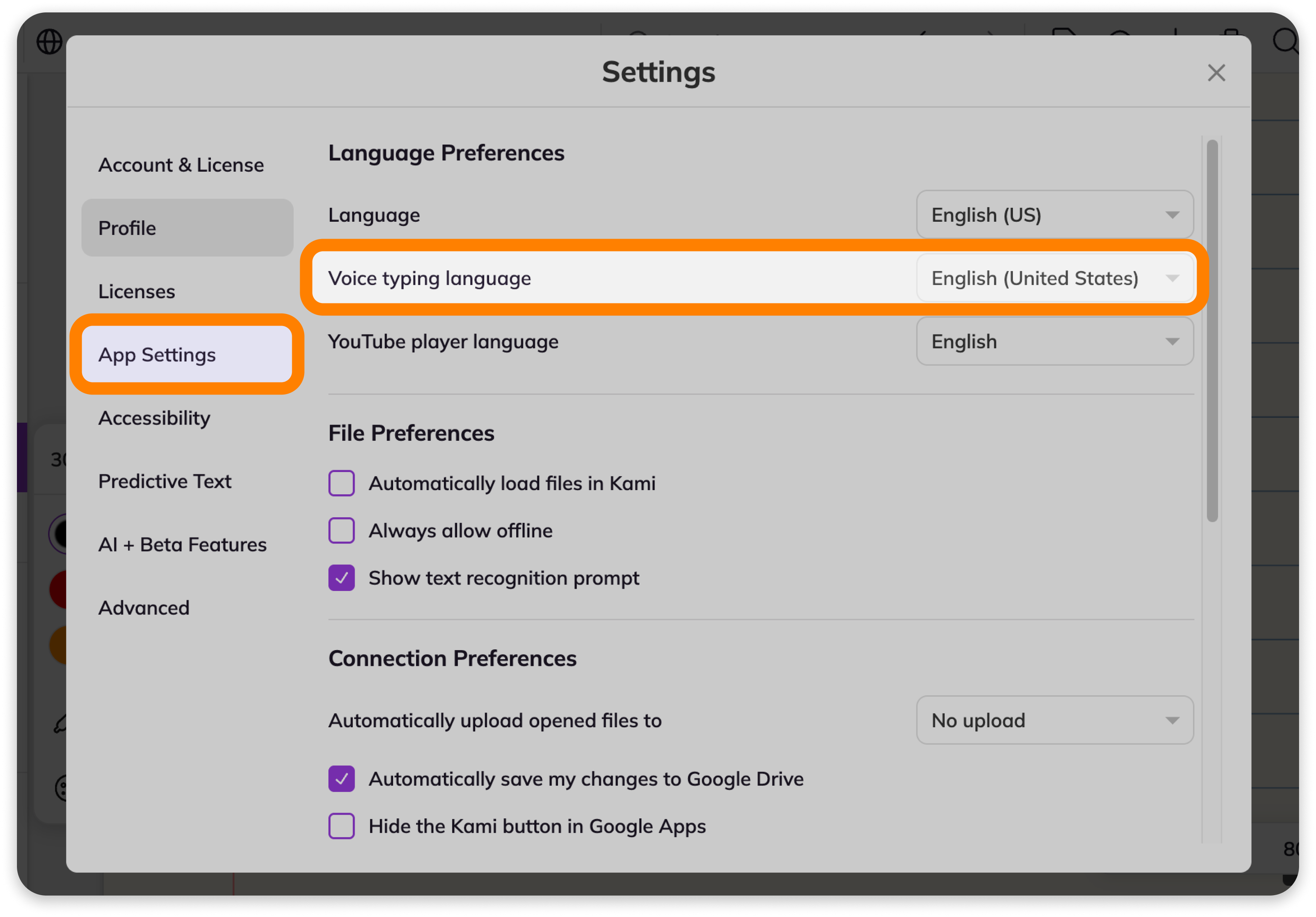
3. Click on the current language selection (to the right of Voice typing language) to view all the languages available. Select your desired language to be used with this feature.
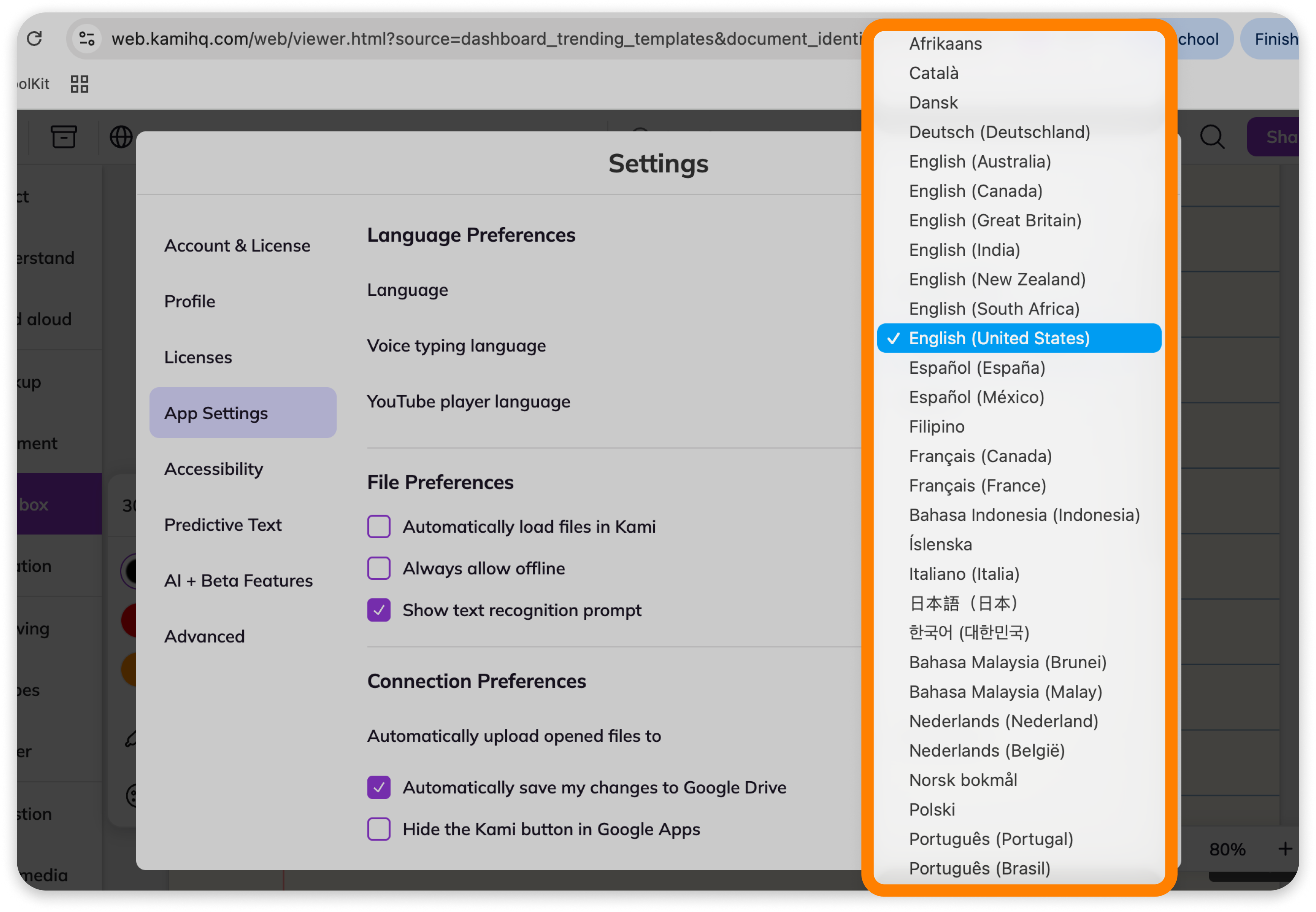
4. After updating this setting with your preferred language, click the Reload button that appears at the top of the window to refresh the app and see your changes.
-png.png?width=3495&height=2421&name=VoiceTypingLanguage%20(1)-png.png)