
What are the Understand Tools?
Kami Companion's Understand tools aim to make learning more accessible and engaging for all students, while also saving teachers valuable time in differentiating instruction and providing support.
-
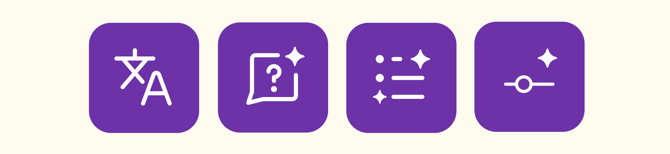
Instantly translate text across the web into over 200 languages.
-
Break down complex content with AI-powered explanations.
-
Build understanding faster by turning complex content into clear, easy-to-read summaries.
-
Adjust text complexity with a simple slider to better match learner needs.
How to use the Understand Tools

1. Choose an Understand tool
Click one of the Understand tool buttons in the Companion toolbar.
2. Select the content
Use your mouse cursor to select the desired text or area of your page to be processed.
3. Use the additional features
In the Understand tool modal, you can change the content language, have it read aloud, or use the Quick Toggle to easily switch to one of the other Understand tools.
Additional Features
The Understand tool modal offers more intelligent, flexible, and integrated support for comprehension, making learning more adaptive and inclusive for a wide range of student needs.
Below is a quick breakdown of each feature:
Read aloud
Companion's Read aloud feature can read aloud any text selected using the Understand tools. The reading speed can also be adjusted on the fly.

Copy generated content
Any text generated by the Understand tools can be copied to your clipboard using the Copy button, located next to Read aloud.

Quick Toggle
Save time with the Quick Toggle feature, which allows you to switch between Understand tools without re-selecting content on the page.
