Accessible learning for all
Dyslexia support
The Kami interface supports the Open Dyslexic and Lexend fonts, intended to improve readability for students with Dyslexia or other reading differences.
%20(9)-png-1.png?width=670&height=400&name=Screenshot%20Template%20(Insert%20image)%20(9)-png-1.png)
Then, open the App Settings tab and find the Accessibility section. Select the drop-down menu next to Use dyslexic-friendly font, and choose the desired font.
Afterward, select the Reload button to refresh your Kami app and apply the changes.
%20(10)-png.png?width=670&height=422&name=Screenshot%20Template%20(Insert%20image)%20(10)-png.png)
💡 Open Dyslexic and Lexend are also available as font options in the Text Box annotation tool.
Screen Masking
Screen masking allows users to focus on a specific portion of the page while dimming the surrounding content, intended to support students with attention differences or reading challenges.
Screen masking plays a significant role in enhancing educational accessibility and focus, particularly in today's increasingly digital learning environments. Here's a breakdown of its importance:
- Enhanced focus: Reduces distractions and improves attention.
-
Increased accessibility: Supports diverse learners (dyslexia, ADHD) and aids in assessments.
-
Reduced visual fatigue: Minimizes eye strain.
-
Improved comprehension: Guides line-by-line reading.
To enable Screen masking, select View from the top Navigation bar. The Screen Masking toggle is located at the bottom of the drop-down menu.
-png-May-18-2026-09-50-39-5033-PM.png?width=670&height=470&name=Screenshot%20Template%20(Insert%20image)-png-May-18-2026-09-50-39-5033-PM.png)
All tools in Kami will still function the same with Screen Masking on.

Changing the Screen Masking settings
To change your Screen Masking settings, first navigate to the Account & Settings menu.
Then, open the App Settings tab and find the Accessibility section, where you will find the Screen Masking Settings.
Here, you can modify the screen masking height, opacity, and color. Any changes you make will be applied automatically.
%20(2)-png-May-18-2026-09-52-25-0506-PM.png?width=670&height=399&name=Screenshot%20Template%20(Insert%20image)%20(2)-png-May-18-2026-09-52-25-0506-PM.png)
Display Themes
Users can adjust the appearance of the Kami interface using Display Themes designed to improve visual comfort and reduce eye strain, based on their preferences or the lighting conditions in their environment.
The available Display Theme settings in Kami are Device, Light, or Dark:
-
Device — Changes to Light or Dark mode, depending on the current setting of your device. For example, if your device is set to automatically change to Dark mode when the sun sets, Kami will follow this.
-
Light — The default setting, this displays the Kami toolbars and menus in white with black text, and a light gray background behind your documents.
-
Dark — Displays the Kami toolbars and menus in black with white text, and a dark gray background behind your documents.
To change your interface Theme, first navigate to the Account & Settings menu. In the drop-down menu that opens, select or hover over the Theme setting.

This will display the three Display Theme options. Select your desired setting (Device, Light, or Dark), and it will be applied automatically.
Color Inversion
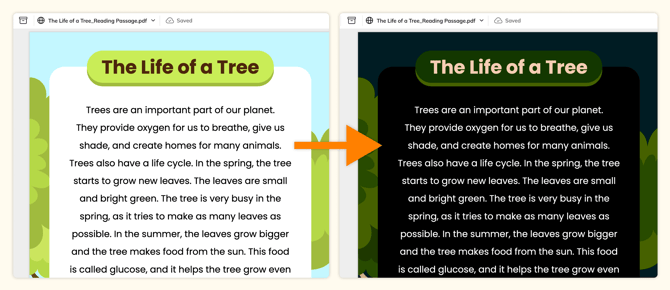
Documents can be displayed using inverted colors to support users with visual sensitivity or contrast needs.
To enable, first navigate to the Account & Settings menu. Then, open the App Settings tab and find the Accessibility section, where you'll find the Invert colors of PDFs option.
%20(11)-png.png?width=670&height=470&name=Screenshot%20Template%20(Insert%20image)%20(11)-png.png)
Afterward, simply refresh the page to apply the change.