
Companion is an accessibility and learning support tool that works across web content to help students access and understand information more easily. Companion helps reduce barriers when interacting with digital learning materials across the web.
Kami Companion's accessibility tools are designed to create an inclusive learning environment for all students. They offer a comprehensive suite of features that address diverse needs.
Kami Companion is aligned to WCAG 2.1AA. Review our most recent Accessibility Conformance Statement, Report, and Accessibility Roadmap below:
Download the Companion Accessbility Conformance Statement
Download the Companion Accessibility Conformance Report (VPAT)
Download the Companion Accessibility Roadmap
Accessibility Features in Companion
Kami Companion includes a variety of features designed to support diverse learners and reduce barriers to accessing digital content:
Reading and literacy support
- Read aloud: Natural voices read any text aloud, with real-time highlighting and adjustable playback speed.
- Immersive Reader: Distraction-free layouts and grammar views help struggling readers stay focused and on track.
- Reading assist: Screen masking and reading rulers keep students focused, line by line.
Comprehension and vocabulary
- Dictionary & Picture dictionary: Access instant text and audio definitions and visual aids. Supports English and Spanish .
- Summarize*: Condenses any selected text, section or full document into a clear summary of the key ideas.
- Explain*: Get clear, contextual explanations for tricky text, charts, and diagrams.
- Adjust*: A simple slider that matches text complexity to every reading level.
*Uses Kami’s safer AI
Writing and expression
- Predictive text: Smart, grammar-aware suggestions with phonetic spelling support help every student write with confidence.
- Voice typing: Speak to turn thoughts into text in real time. Supports multiple languages.
Language and inclusion
- Translate: Instantly translate web-based resources into 100+ languages in text and audio. Copy translated text to use elsewhere.
- Open in Kami: Send any webpage to Kami to start annotating and collaborating.
How to use the Accessibility tools
💡 For a more detailed breakdown and step-by-step instructions on how to use each Companion Accessibility tool, select each of the tools in the section above.
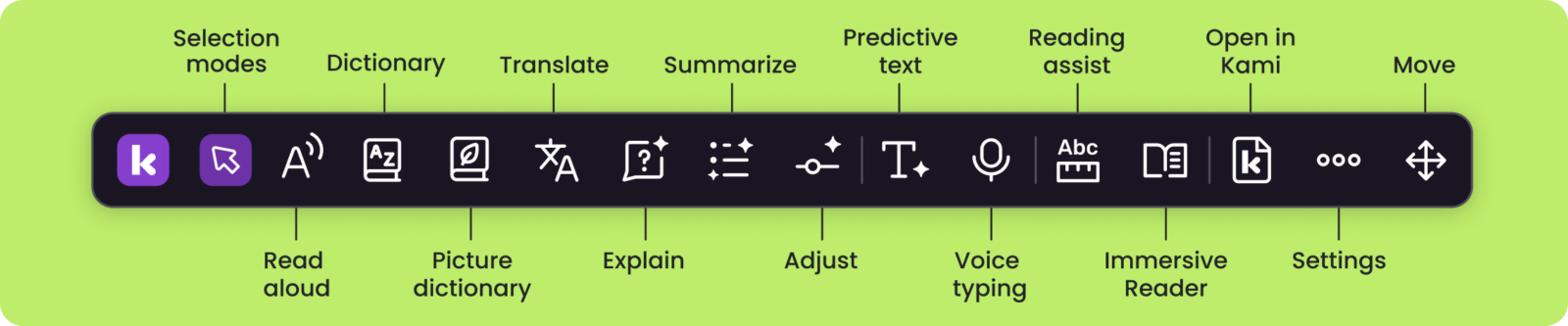
1. Choose an Accessibility tool
Click one of the Accessibility tool buttons in the Kami Companion toolbar.
2. Select the content
Use your mouse cursor to select the desired text or area of your page to be processed.
3. Use the extra features
Use the Accessibility tool modal to change the content language, have it read aloud, or easily switch to one of the other Accessibility tools.